
How to Fix No Sound on Windows 11: 8 Quick Solutions
Outdated sound driver is the main cause of this issue


 4 min. read
  Updated on

Windows 11 no sound issues can occur after system updates, Realtek driver failures, or when your PC wakes from sleep. In some cases, sound output devices appear connected, but there’s still no audio, whether through internal speakers, HDMI, or headphones.
Even if the issue appeared after you upgraded from Windows 10, most issues can be fixed without reverting back. Find below reliable fixes that address everything from no audio on YouTube, browser playback issues and hardware coflicts in brands like Lenovo or MSI.
Table of contents
- Why Can’t I Hear Anything on My Windows 11 Laptop?
- Fix Audio Not Working On Windows 11
- 1. Check That Your Audio Output Is Connected Properly
- 2. Use the Built-In Audio Troubleshooter
- 3. Update Your Sound Drivers (Realtek or Others)
- 4. Install Windows 11 Updates
- 5. Restart Windows Audio Services
- 6. Review Sound Output Settings
- 7. Reinstall the Sound Driver
- 8. Reset Windows 11 (Advanced Users Only)
- Still No Audio? Consider Expert Support
Why Can’t I Hear Anything on My Windows 11 Laptop?
You might be dealing with no sound on your computer running Windows 11 due to several possible reasons:
- Corrupted or outdated drivers (Realtek, USB, or HDMI)
- Your PC’s internal speakers are not working due to wrong default settings
- Audio services are not responding or are disabled
- The volume is muted or routing to the wrong output
- A recent Windows update disrupted audio configurations
- Specific apps like OBS or web browsers fail to output sound
Fix Audio Not Working On Windows 11
1. Check That Your Audio Output Is Connected Properly
Before diving into advanced settings, confirm your headphones, HDMI cable, or external speaker is securely plugged in. A loose connection may cause errors like no output devices found in Windows 11.
Switch USB ports if you’re using a USB audio device, especially if you’re experiencing audio distortion or crackling.
2. Use the Built-In Audio Troubleshooter
- Press Start > Settings > System > Troubleshoot
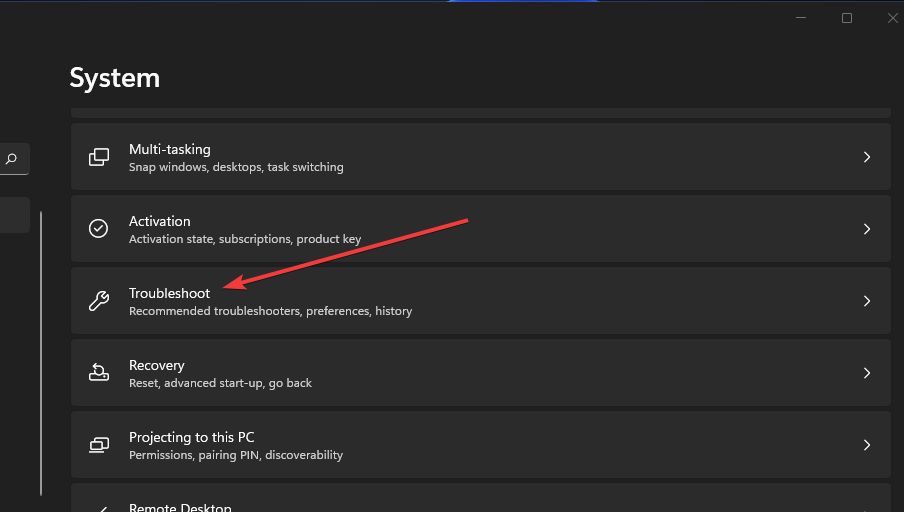
- Select Other troubleshooters

- Click Run next to Play Audio
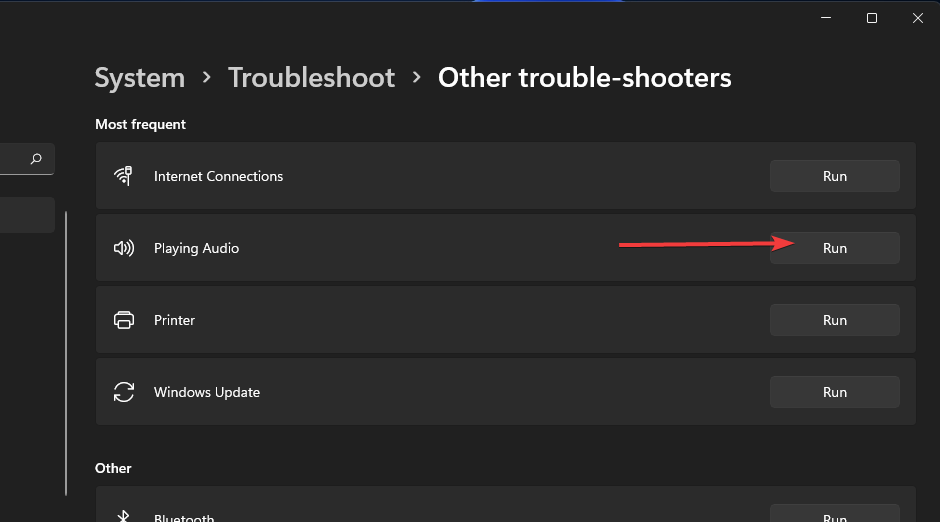
This tool can fix browser or YouTube sound issues as well as system-level playback errors.
3. Update Your Sound Drivers (Realtek or Others)
3.1 Update via Device Manager
- Open Device Manager
- Expand Audio inputs and outputs
- Right-click your sound device > Update driver
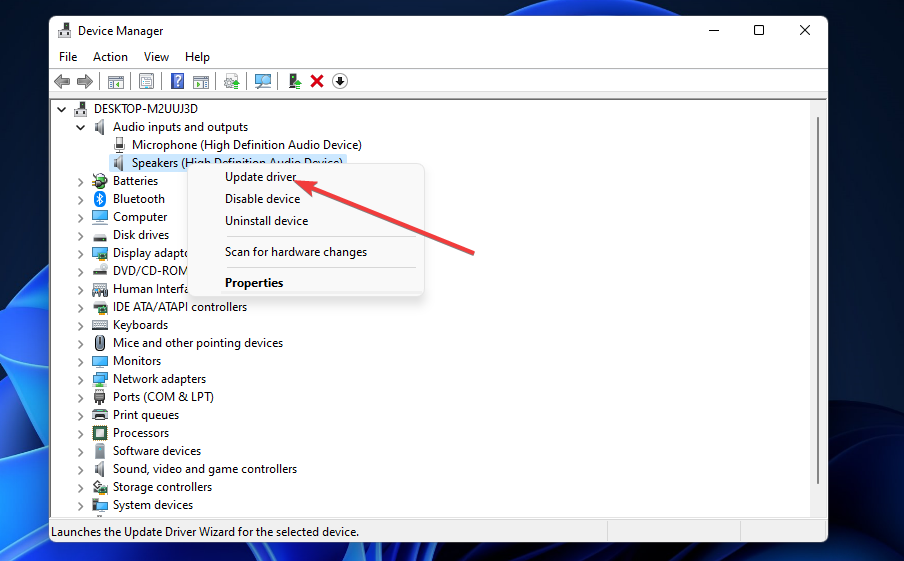
- Select Search automatically for drivers

3.2 Use a Driver Update Tool
We recommend using PC HelpSoft Driver Updater to fix missing or faulty drivers without manual risk:
Download PC HelpSoft Driver Updater
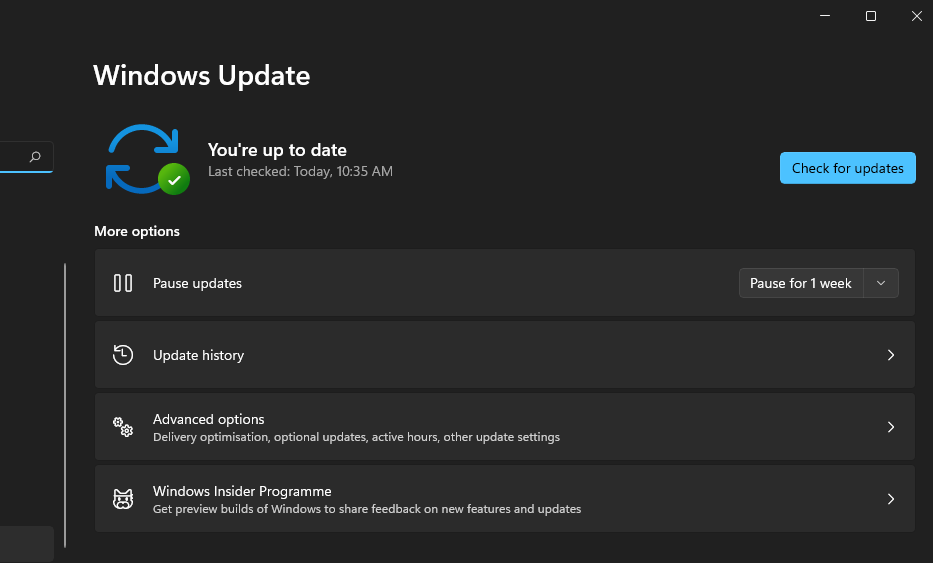
4. Install Windows 11 Updates
- Click the Search icon
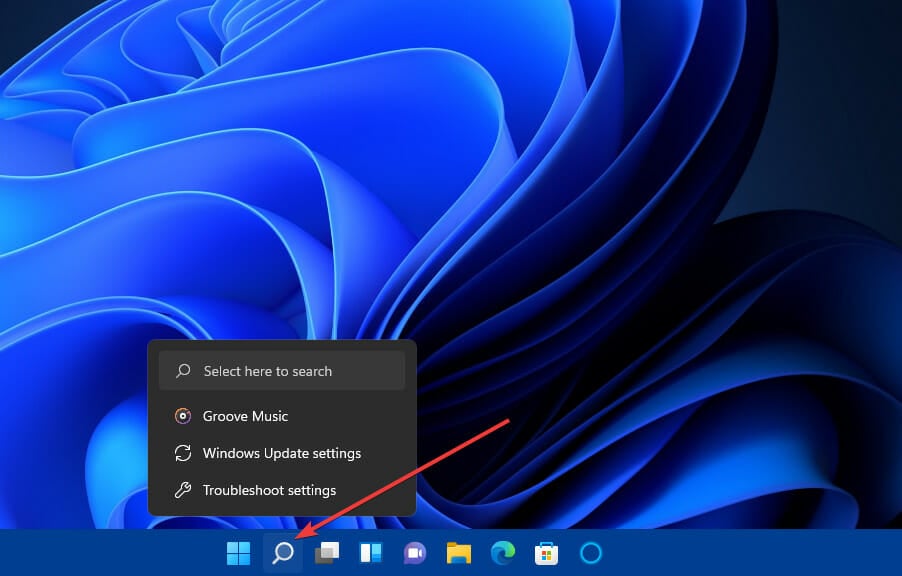
- Search for Windows Update and open settings
- Click Check for updates
5. Restart Windows Audio Services
- Open Run (Win + R) and type
services.msc
- Right-click Windows Audio > Restart

Restart Windows Audio Endpoint Builder and Remote Procedure Call (RPC) services as well.
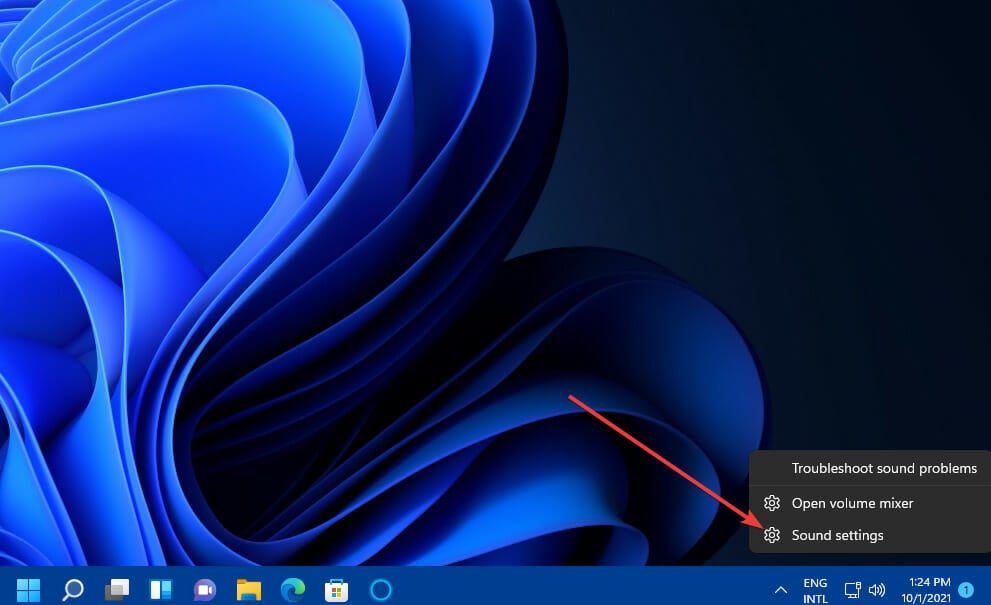
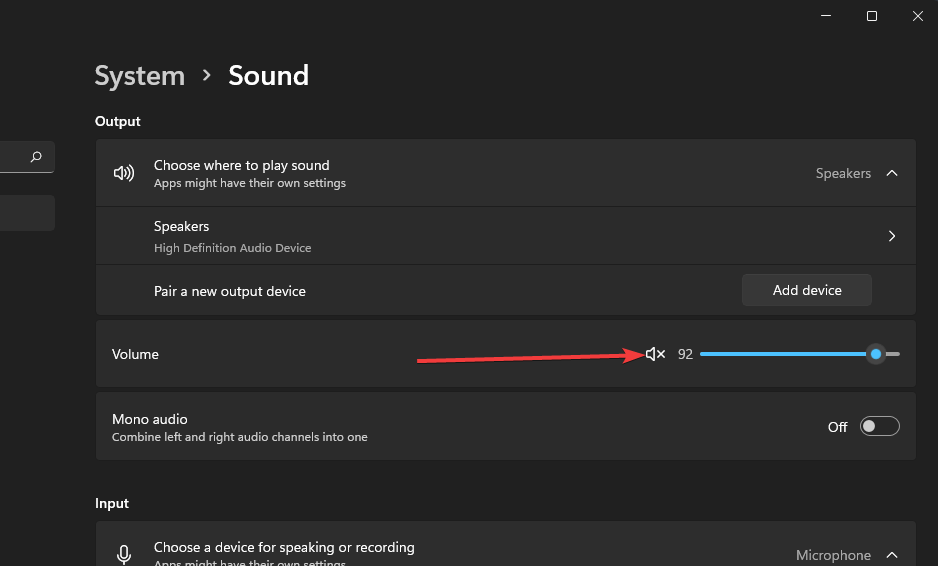
6. Review Sound Output Settings
- Right-click the speaker icon > Sound settings
- Choose the right playback device and unmute if needed
- Adjust sliders in Volume mixer
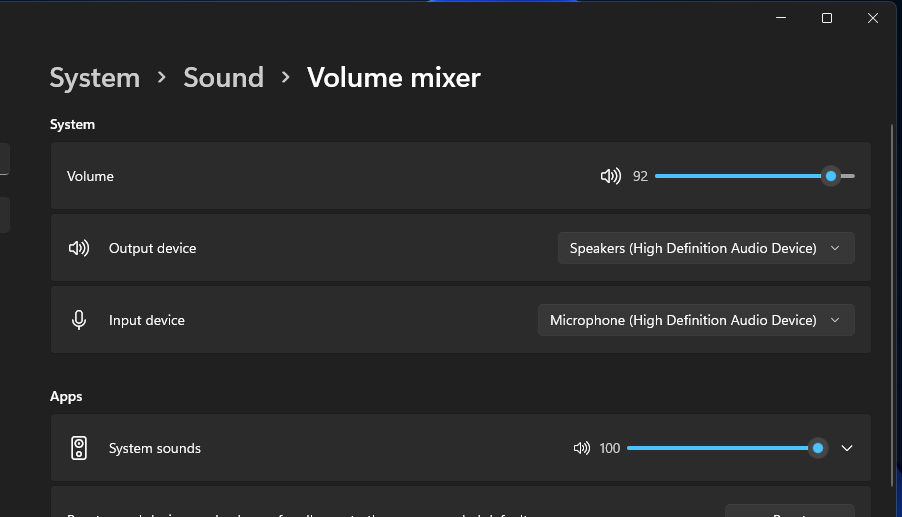
- Ensure System sounds is routed to the default output

For HDMI or dual-monitor sound fixes, check out our full dual-monitor audio troubleshooting guide.
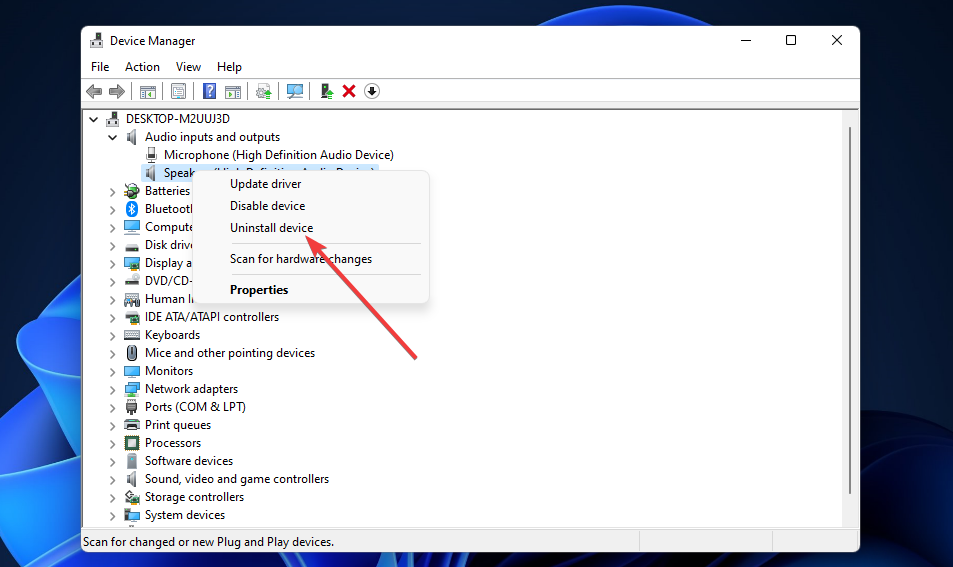
7. Reinstall the Sound Driver
- Open Device Manager

- Right-click the faulty device > Uninstall
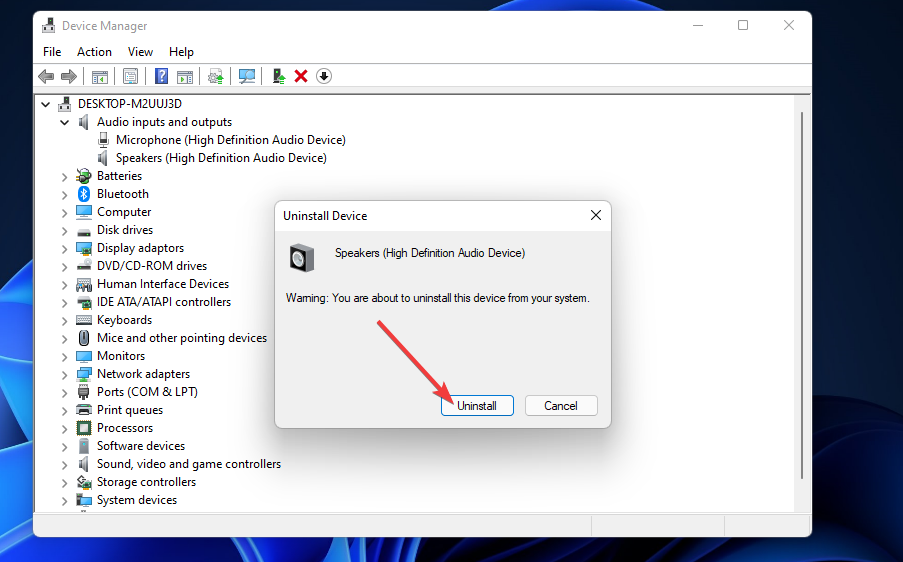
- Confirm removal
- Restart your PC to reinstall the driver automatically
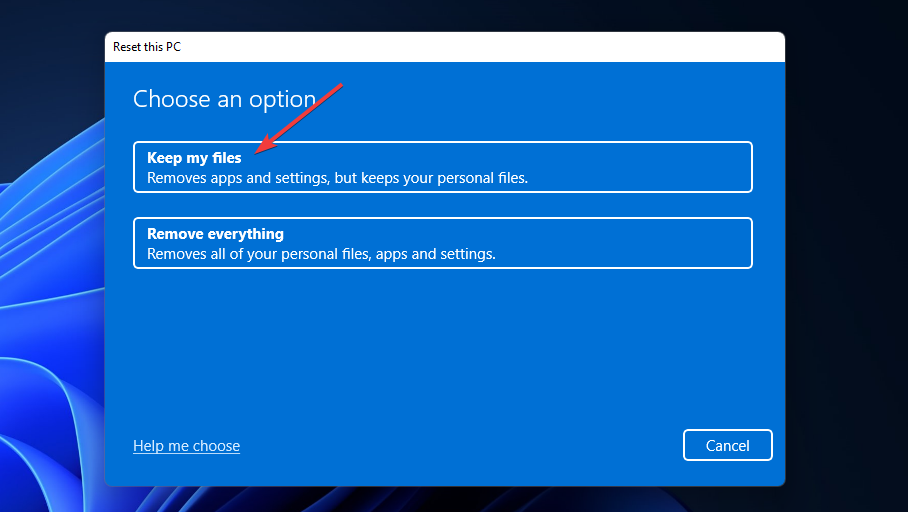
8. Reset Windows 11 (Advanced Users Only)
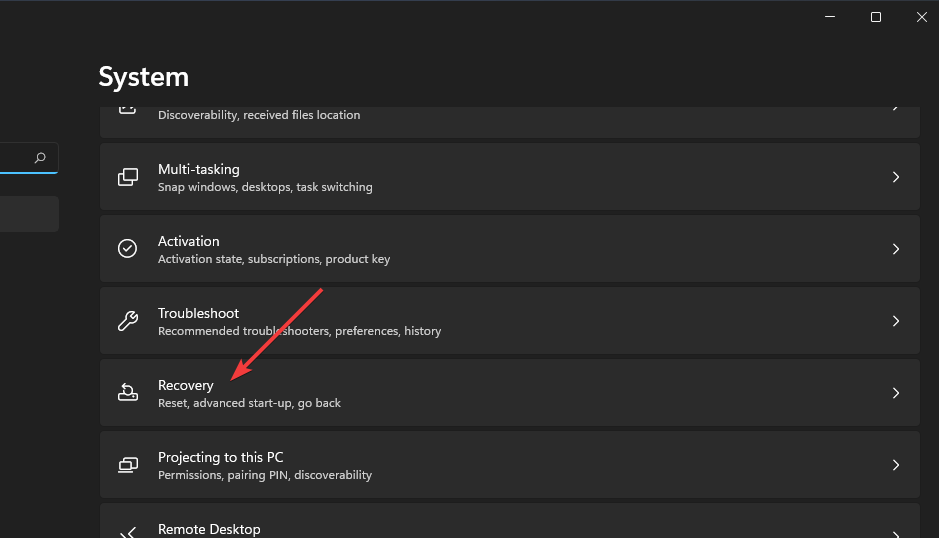
- Navigate to Settings > System > Recovery
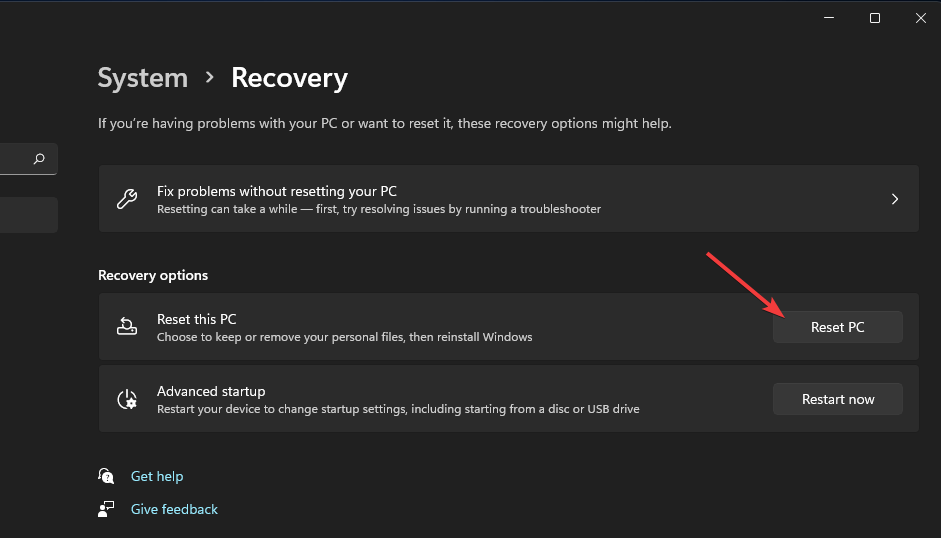
- Click Reset PC
- Select Keep my files
Still No Audio? Consider Expert Support
If your speakers or HDMI output still don’t work, it may be a hardware problem. Try:
- Contacting Microsoft support
- Posting on the Windows community forum
- Using our fix for YouTube sound issues in Windows 11
You can also refer to our complete sound troubleshooting guide that covers both Windows 10 and 11 issues.
Conclusion
If you’re dealing with Windows 11 no sound problems, the solutions above cover all common causes—from Realtek driver failures to muted outputs and browser playback errors. Try each fix step-by-step, especially after an update or sleep mode. In most cases, your sound will be restored without needing a full reset.
FAQs
Updates can sometimes reset or corrupt your audio driver settings. Reinstalling drivers or running the Play Audio troubleshooter often helps.v
Update or reinstall the Realtek audio driver using Device Manager or a trusted driver updater tool.
Your internal speakers might be disabled, not set as default, or muted. Check Sound settings and ensure the correct output is selected.

Read our disclosure page to find out how can you help Windows Report sustain the editorial team. Read more



Improve this guide


User forum
0 messages