
Fix Motherboard Not Getting Power (Easy Steps)
Check for improperly installed components


 3 min. read
  Updated on
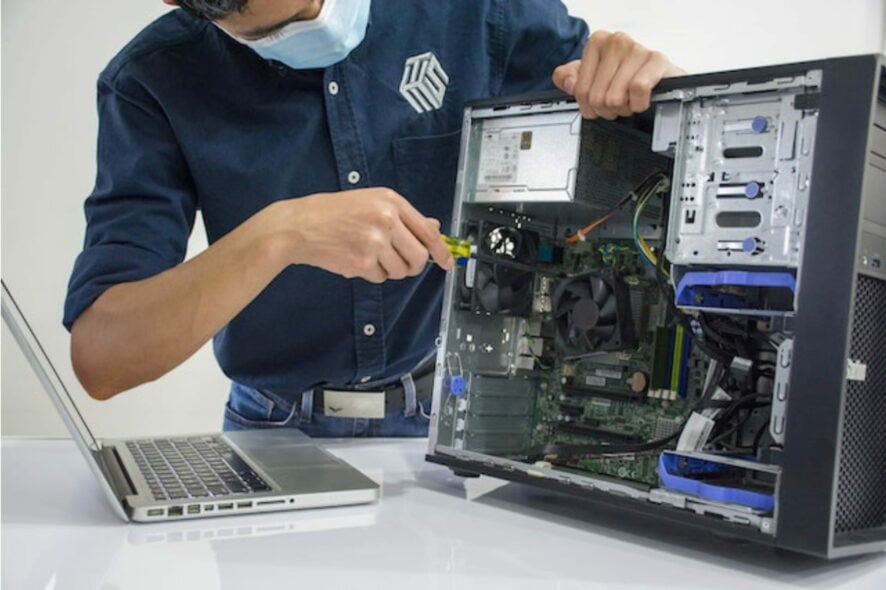
If your motherboard won’t power on, don’t panic just yet. Whether you’re dealing with a Gigabyte, ASUS, or any other brand, or your PC refuses to boot entirely, it doesn’t always mean there’s a serious hardware issue. This guide walks you through beginner-friendly troubleshooting methods using only built-in Windows tools and basic checks, no advanced tech skills required.
Table of contents
Why Your Motherboard Isn’t Getting Power
Several basic issues can cause a motherboard not to boot or receive power, such as:
- Faulty outlets or unplugged power cables
- Sleep or hibernate settings blocking startup
- A power surge or incomplete shutdown
- PSU-related configuration or wattage mismatch
If you’re curious about power mismatches, you can check your PSU’s wattage to ensure it matches your system’s needs.
How to Fix a Motherboard Not Getting Power
1. Check the Power Cable and Outlet
Start with the simplest check.
- Confirm the power cable is plugged securely into the PC and the wall.
- Use a known working wall outlet rather than a power strip.
- If your power supply has a switch, make sure it is turned on.
If you suspect a faulty PSU, you can test your power supply using software without opening your PC.
2. Try a Power Reset
Resetting the internal power can often bring an unresponsive PC back.
- Turn off the PC and unplug it.
- Press and hold the power button for 15 seconds.
- Wait one minute, plug it back in, and try powering on.
This helps in cases where the motherboard will not power on due to static buildup or a failed shutdown.
3. Look for Signs of Power
Check for basic indicators when you press the power button:
- Spinning fans
- Lights inside the case
- A single beep or startup sound
If you see or hear nothing, the motherboard might not be receiving any power at all. For persistent cases, check out this guide on Windows 10 power supply problems.
4. Run the Built-In Power Troubleshooter
If your PC sometimes powers on but doesn’t boot properly, let Windows try to fix it:
- Press Windows + I to open Settings
- Go to System > Troubleshoot > Other troubleshooters

- Click Run next to Power
This troubleshooter can repair corrupted power plans and startup behavior.
5. Adjust Power Plan Settings
Sleep or hibernate mode can block startup if misconfigured.
- Open Control Panel
- Navigate to Hardware and Sound > Power Options

- Select Balanced or High performance
- Click Change plan settings
- Set Put the computer to sleep to Never
- Click Save changes
These changes help avoid power states that cause the motherboard not to start the power supply.
FAQ
No. All of the actions are non-destructive and do not affect your files or apps.
No. This guide uses only external tools and Windows features.
Yes. Use a computer performance test online to assess your system’s behavior once it boots again.
Conclusion
A motherboard not getting power doesn’t always mean it’s dead. These safe, beginner-friendly steps help you troubleshoot without tools or risk. Whether your motherboard will not power on or boot, a few simple checks can often bring your PC back to life.

Read our disclosure page to find out how can you help Windows Report sustain the editorial team. Read more



Improve this guide


User forum
2 messages