
How to Change RGB Color on a Logitech Mouse


 3 min. read
  Published on

Learn how to change the color on your Logitech mouse with this step by step guide. Whether you use Logitech G Hub or built in buttons, you can easily adjust RGB lighting and personalize your setup.
Table of contents
How to Change the Color on a Logitech Mouse?
1. Open Logitech G Hub
Follow these steps to get started with G Hub.
- Download and install Logitech G Hub from the official site.

- Launch the app and connect your mouse.
- Select your device from the dashboard.
If you also want to fine tune performance, see how to change DPI on a Logitech mouse.
2. Go to the Lighting tab
Now access the lighting controls.
- Click the Lighting section in G Hub.
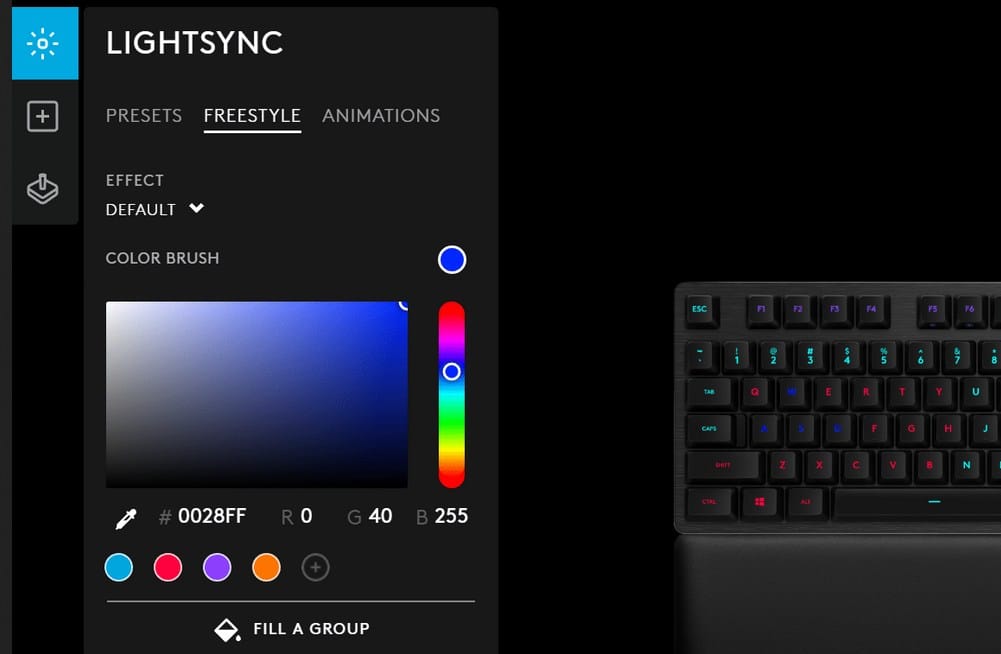
- Choose the effect type such as fixed color, breathing, or cycle.
- Pick your desired color from the palette or enter RGB values.
3. Save your settings
Make sure to apply the changes.
- Apply changes and set a default profile.
- Confirm the new color shows on your mouse.
- Optionally save profiles per game or app.
4. Use hardware buttons on supported models
For mice with built in color buttons, follow these steps.
- Check if your mouse has a dedicated lighting button.
- Press the button to cycle through preset colors.
- Use this option if G Hub is not installed.
If your mouse is not lighting up correctly, the issue may be power related. Here is how to change the battery in a Logitech mouse.
FAQs
Open G Hub, select your mouse, and choose Restore Defaults under the Lighting tab.
Yes. Use G Hub LightSync to match colors across supported Logitech devices.
No. RGB control is available on Logitech G or other RGB enabled models. Office models usually do not support lighting changes.
Yes. In G Hub, open Lighting and choose Off to disable all effects.
Conclusion
Changing the color of your Logitech mouse is simple with G Hub or built in controls. Customize your setup, create per app profiles, or switch the lights off when you want a distraction free desk. If you also need help managing power, learn how to charge a Logitech mouse.

Read our disclosure page to find out how can you help Windows Report sustain the editorial team. Read more



Improve this guide



User forum
0 messages