
How to Create a Logo Using Design.com’s AI Logo Generator


 5 min. read
  Published on

Creating a professional logo no longer requires complex design software or hiring a designer. With Design.com’s AI Logo Generator, you can build a polished, unique logo in minutes using simple on-screen prompts. The platform combines cutting-edge AI, the world’s largest logo library, and easy editing tools to make logo creation simple for anyone, even if you have zero design experience.
This guide walks you step-by-step through the entire process so you can create a high-quality, customizable logo for your business or project.
Before You Start: Why Use Design.com?
Design.com is the #1 logo maker in the world, backed by 3,000+ reviews and a 4.7 rating. It offers:
- Over 360,000+ logo templates
- 1M+ design templates for social, print, and branding assets
- Exclusive icons, shapes, and 525+ exclusive fonts
- A full AI branding suite that extends your logo into business cards, websites, flyers, presentations, and more
- Automatic brand consistency, with your colors applied everywhere
- Free tools (website builder, link-in-bio, digital business card) are included in every plan
Now let’s build your logo.
How to Create a Logo Using Design.com’s AI Logo Generator
1. Go to the AI Logo Generator
Visit Design.com and access the AI logo generator.
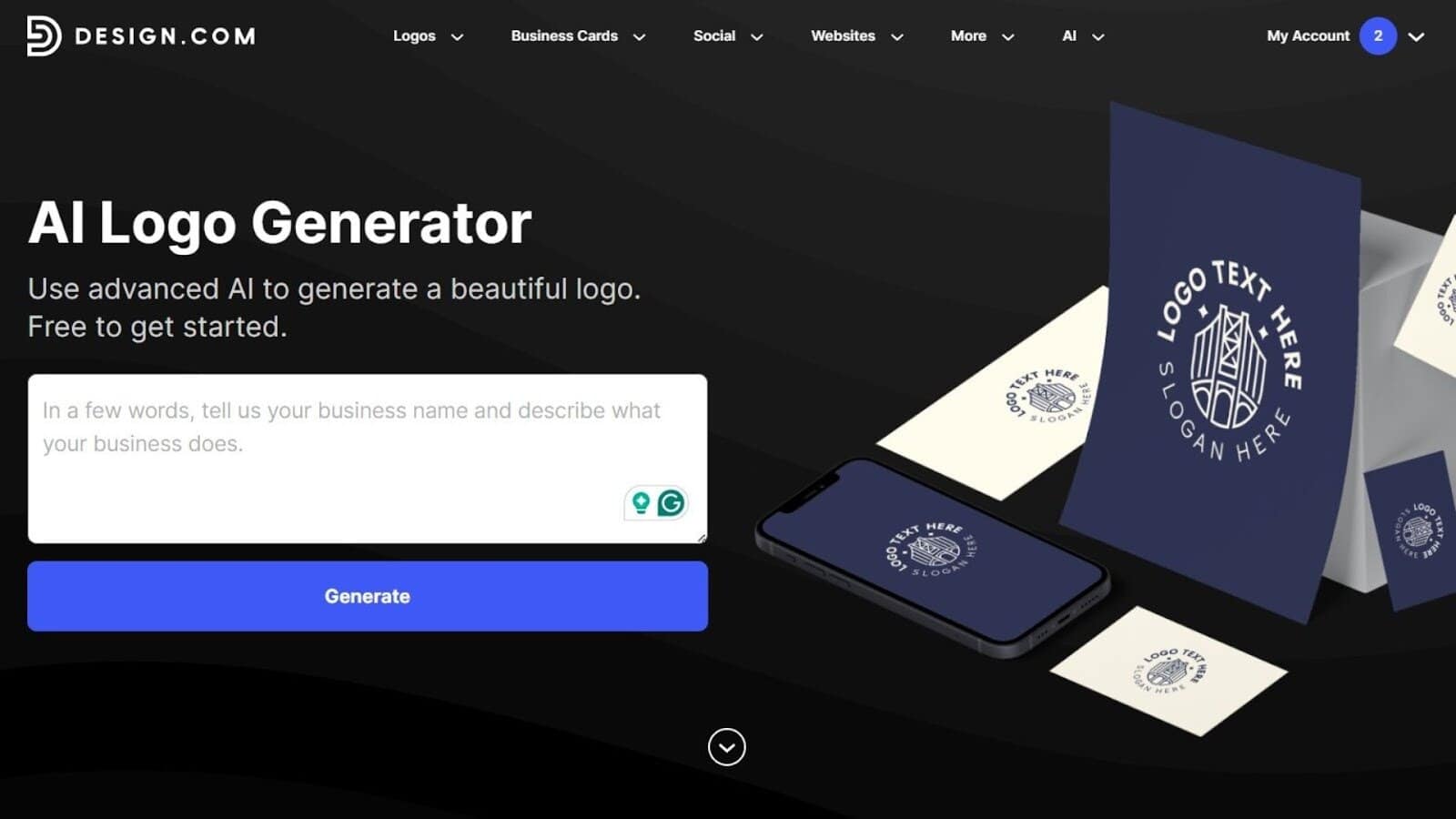
This instantly brings you to the tool where you can start generating logos right away. No software installation is required; everything runs in your browser.
2. Enter Your Business or Brand Name
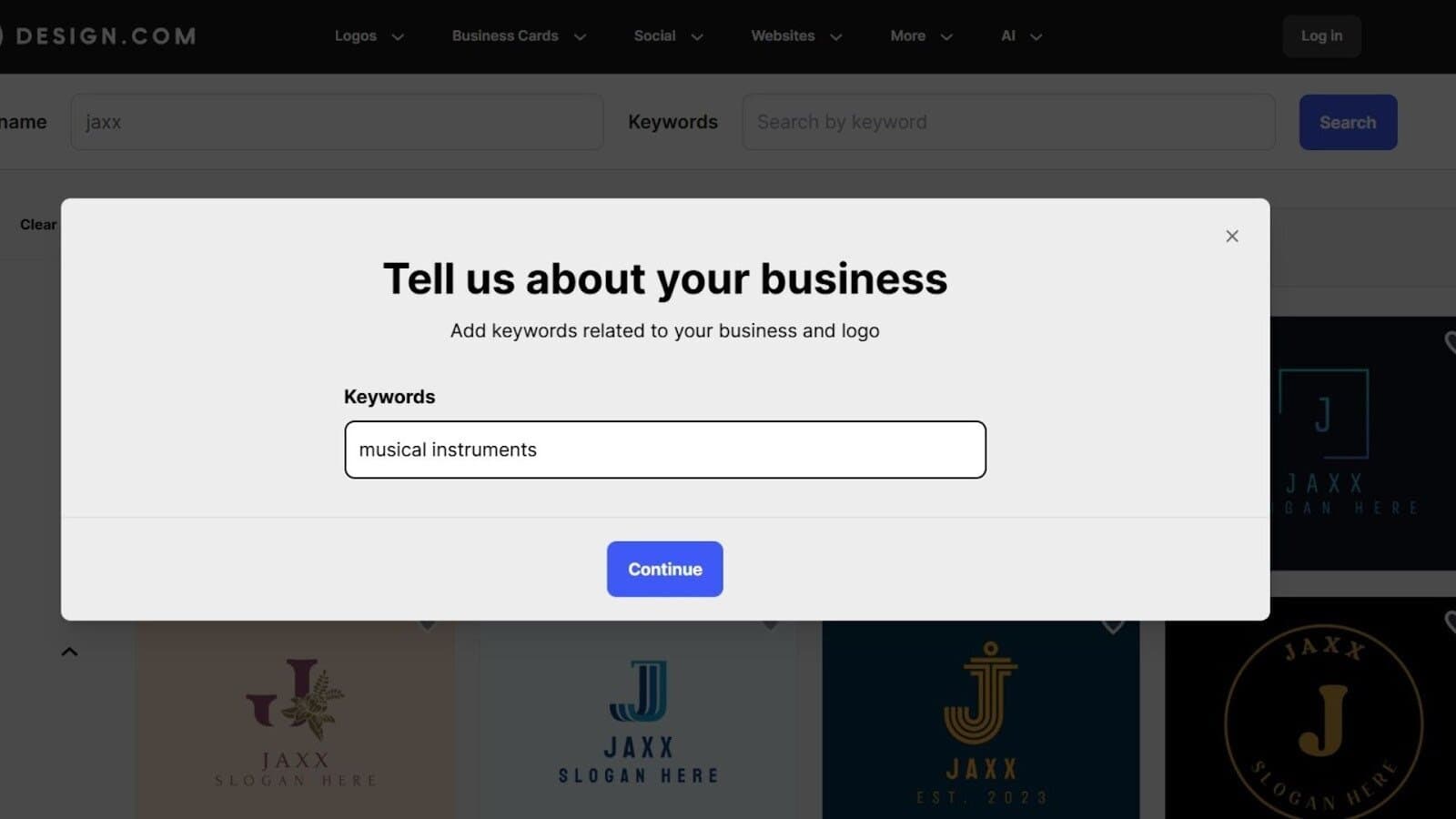
Type in the name you want displayed on the logo.
You can add:
- Your business name
- A product name
- A personal brand name
- A project or event title
Design.com’s AI uses this text to create logo concepts tailored to your brand identity.
3. Generate Logo Concepts
Click Generate and wait a few seconds.
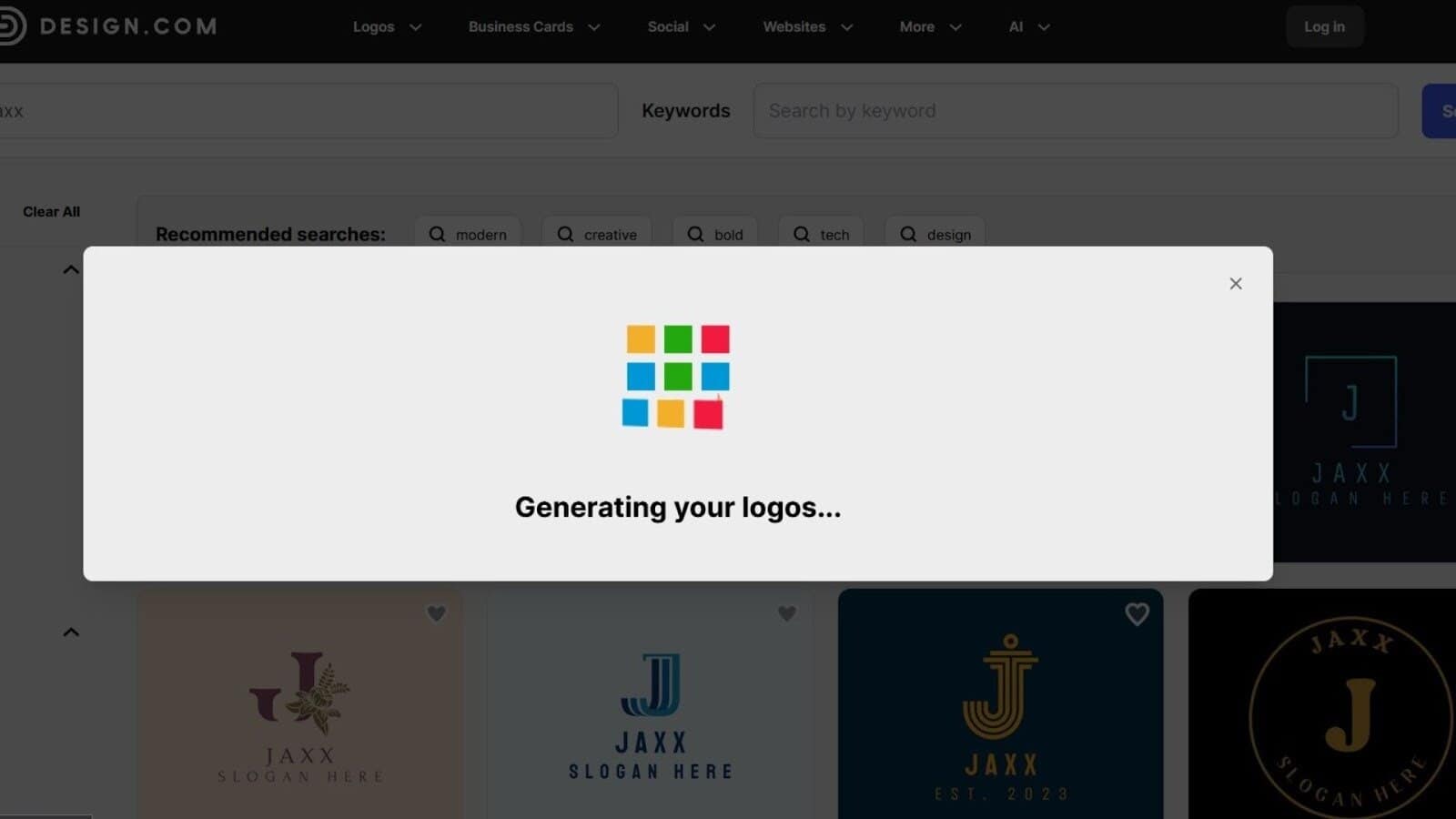
Design.com instantly produces:
- Dozens of logo ideas at once
- Multiple styles: abstract, emblem, mascot, corporate, vintage, modern, and wordmark
- Icons and shapes pulled from 62,000+ exclusive vector assets
This gives you a huge variety of starting points, far more than most AI logo makers.
4. Filter Your Results
Use filters to narrow down styles and get designs that fit your taste.
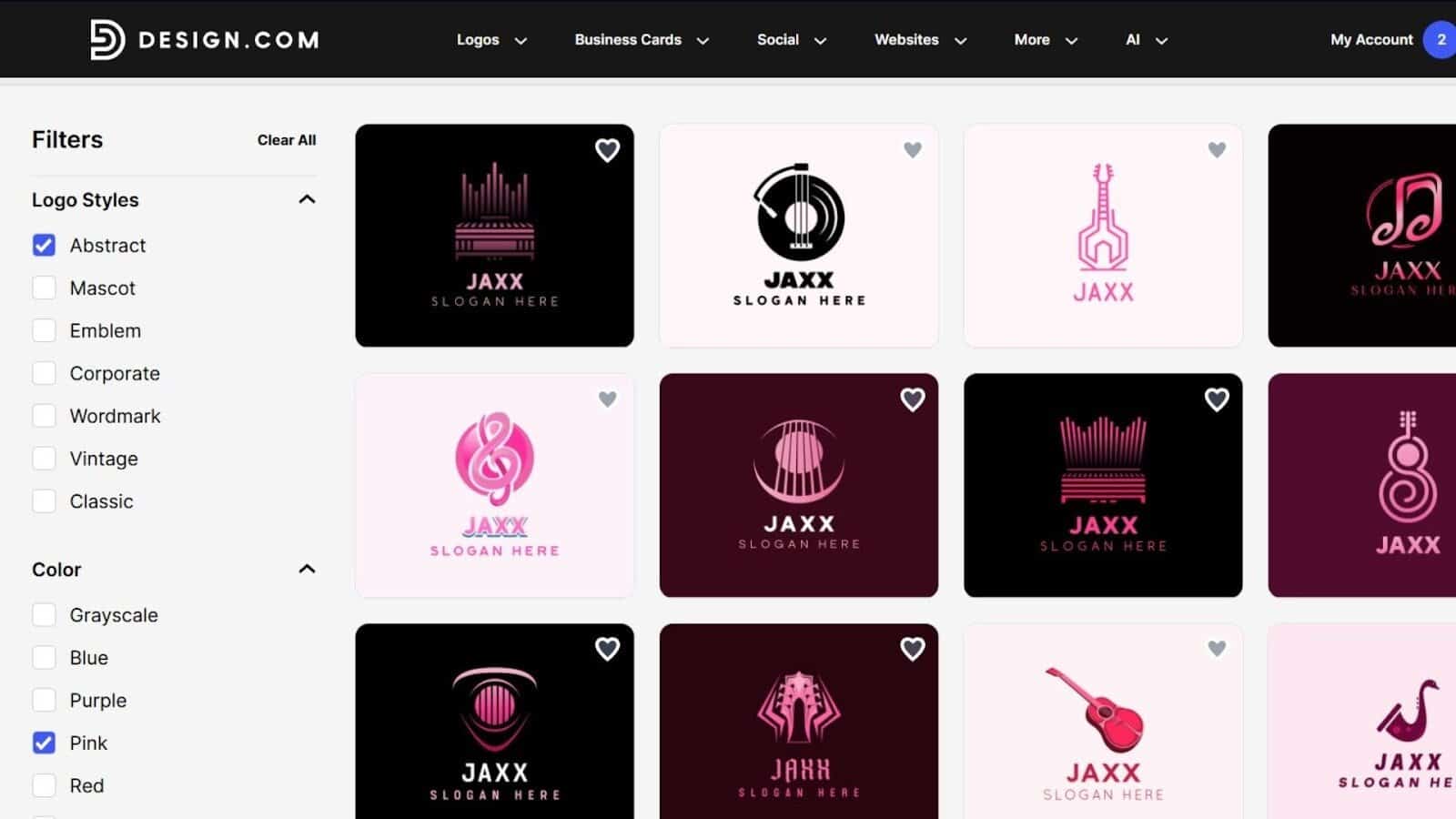
You can filter by:
- Logo Style
- Abstract
- Mascot
- Emblem
- Wordmark
- Classic
- Vintage
- Corporate
- Color Themes
Choose from curated color palettes or specific tones to match your brand mood.
These filters make it easier to find designs that feel intentional instead of random. Browse through your generated results. When you find a concept you like, click it to move into the editor.
Don’t worry if it’s not perfect yet, the next steps let you refine everything.
5. Customize Your Logo in the Editor
Browse through your generated results. When you find a concept you like, click it to move into the editor.
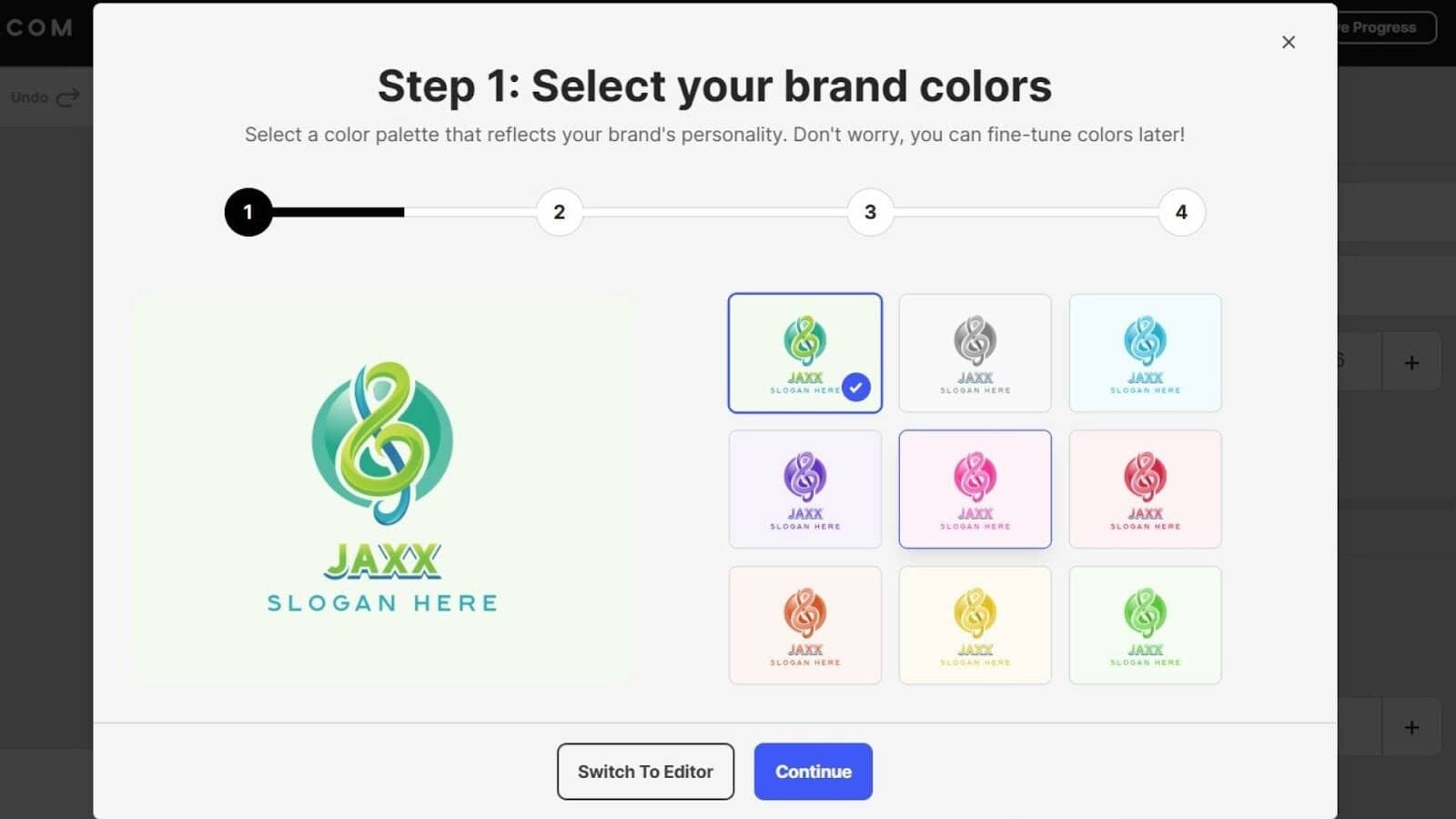
The editor is beginner-friendly but powerful enough for deeper adjustments.
You can customize:
a. Text & Slogan
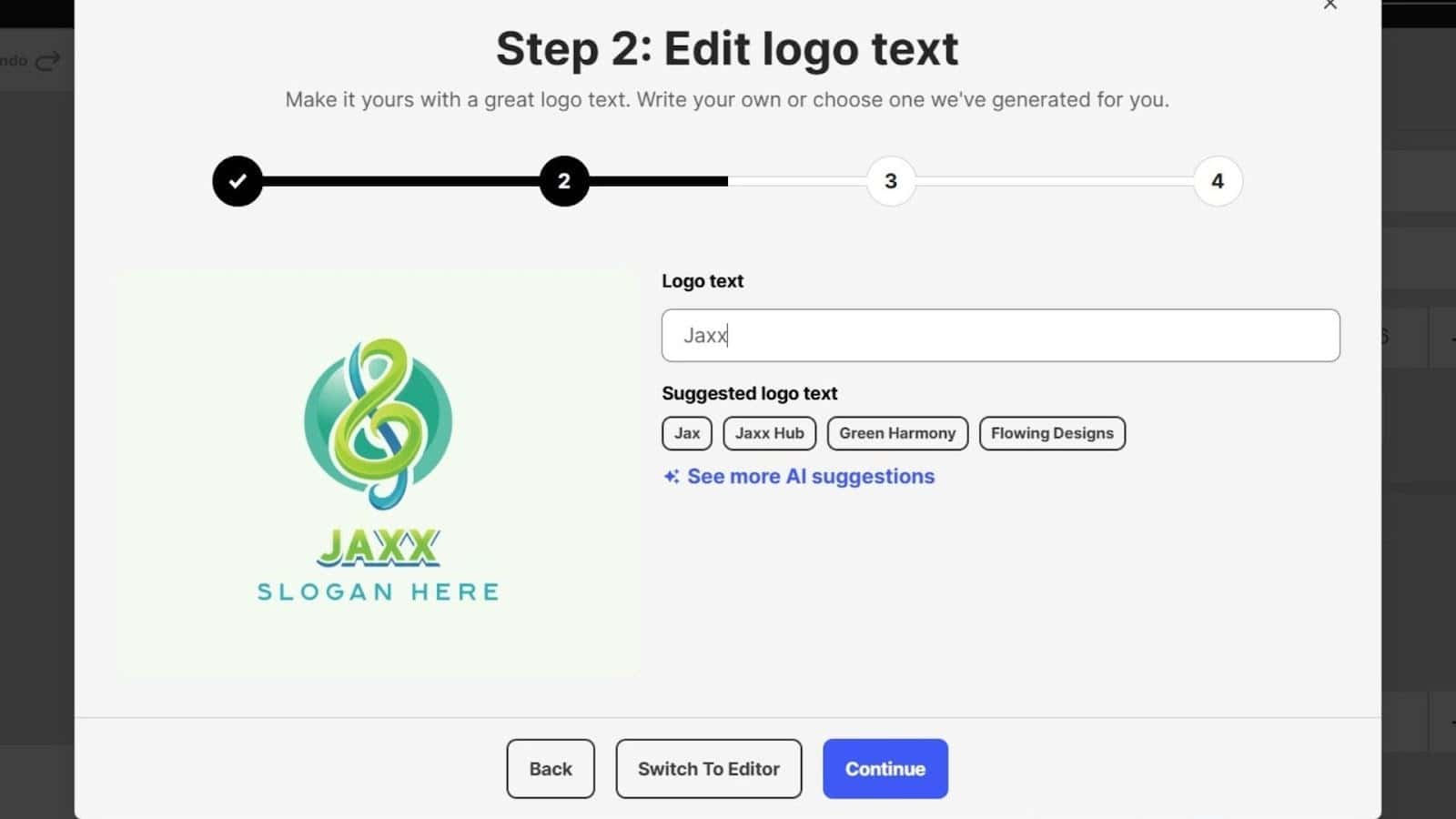
- Edit the business name
- Add or remove a slogan
- Adjust spacing and alignment
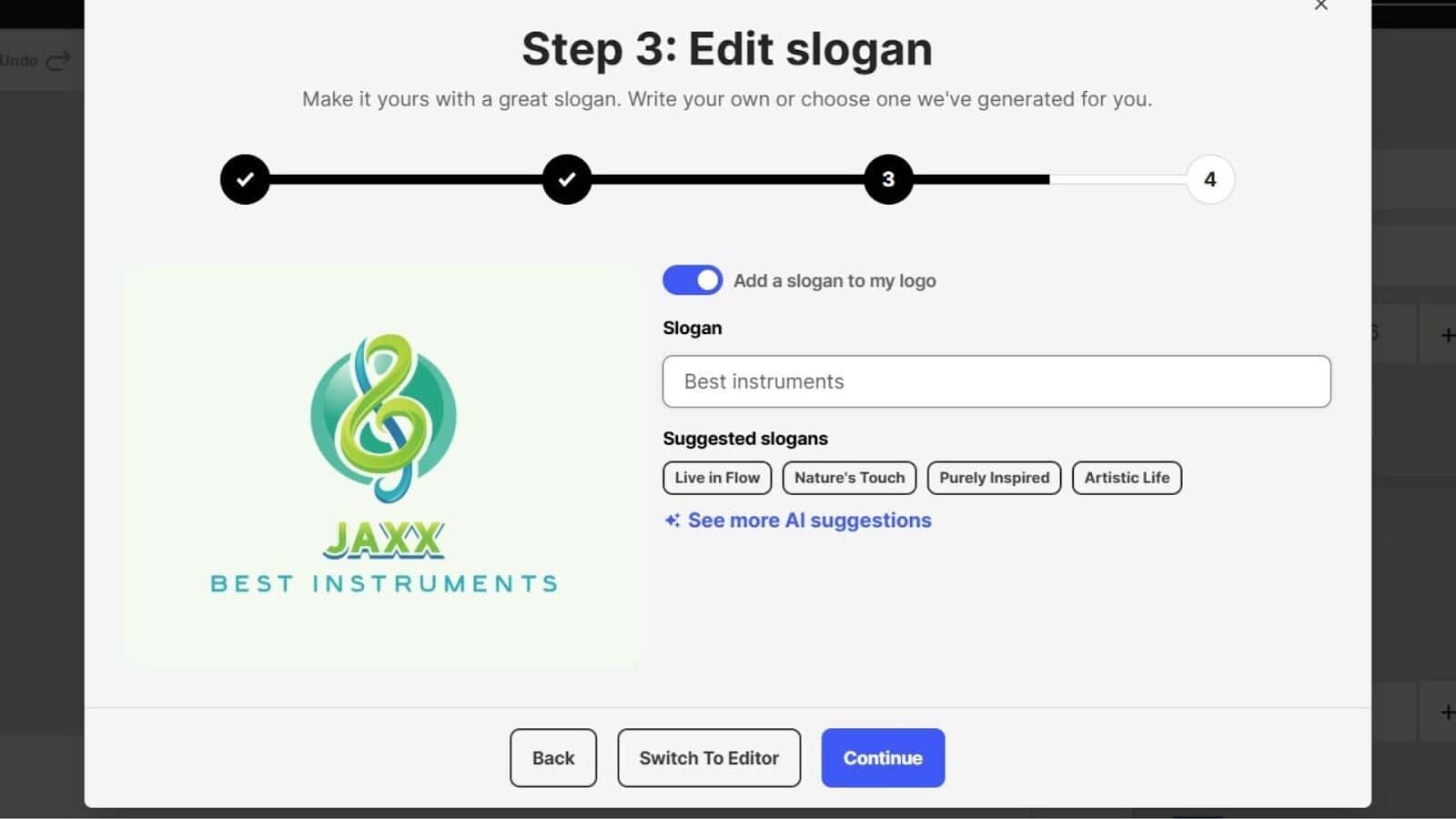
b. Layouts
Modify:
- Horizontal layouts
- Stacked layouts
- Icon-only versions
- Spacing and proportions
Advanced Editor
If you want deeper precision:
- Fine-tune spacing
- Adjust icon/text proportions
- Control element alignment
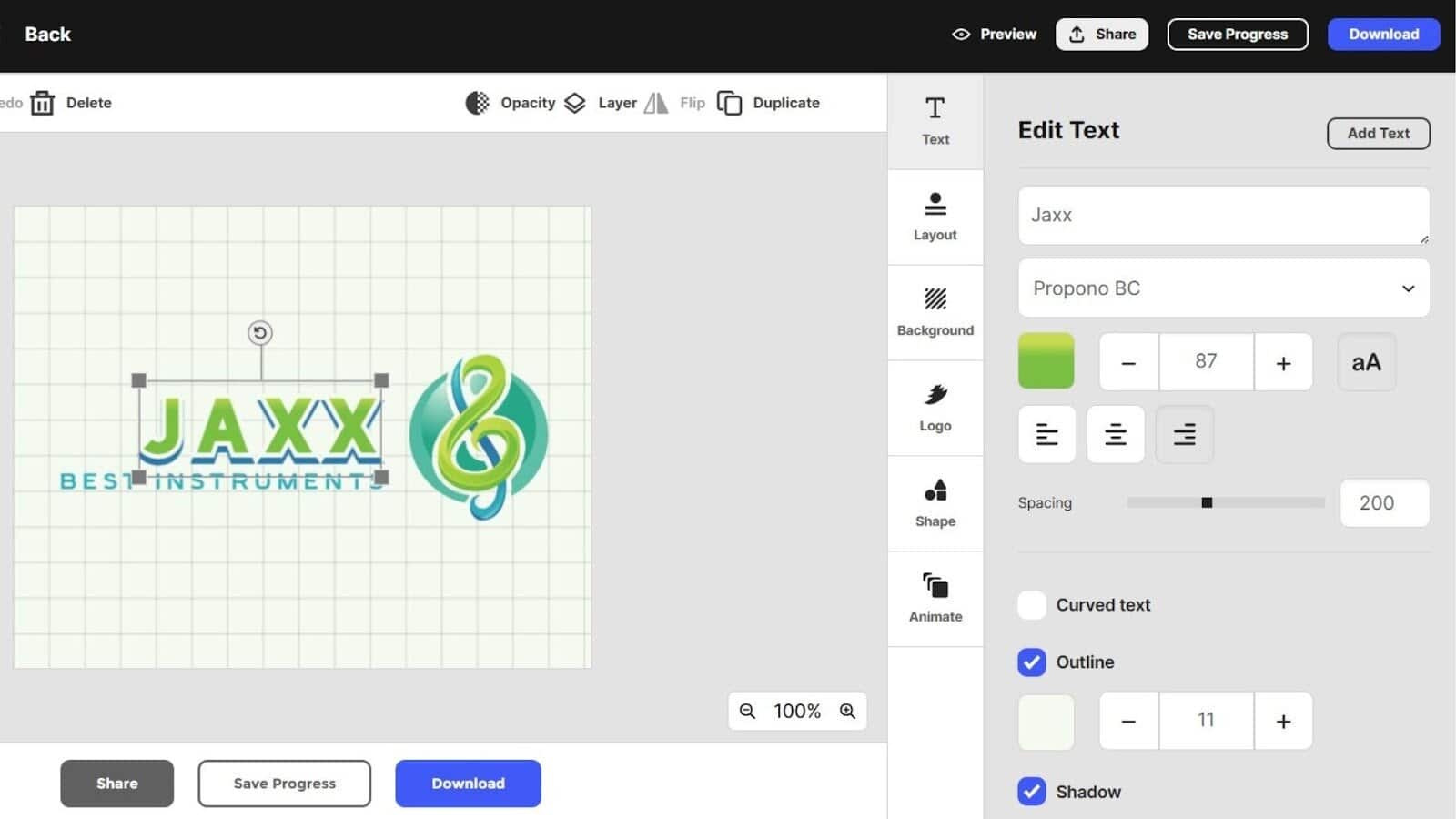
a. Fonts
Choose from:
- 750+ total fonts
- 525+ exclusive fonts not available anywhere else
b. Colors
- Use auto-generated palette suggestions
- Apply brand colors manually
- Preview multiple color combinations instantly
c. Icons & Shapes
Swap icons using Design.com’s library of exclusive shapes and elements, or adjust the size and position of existing ones.
Even non-designers can create a professional finish with just a few tweaks.
6. Preview Your Logo on Real Branding Materials
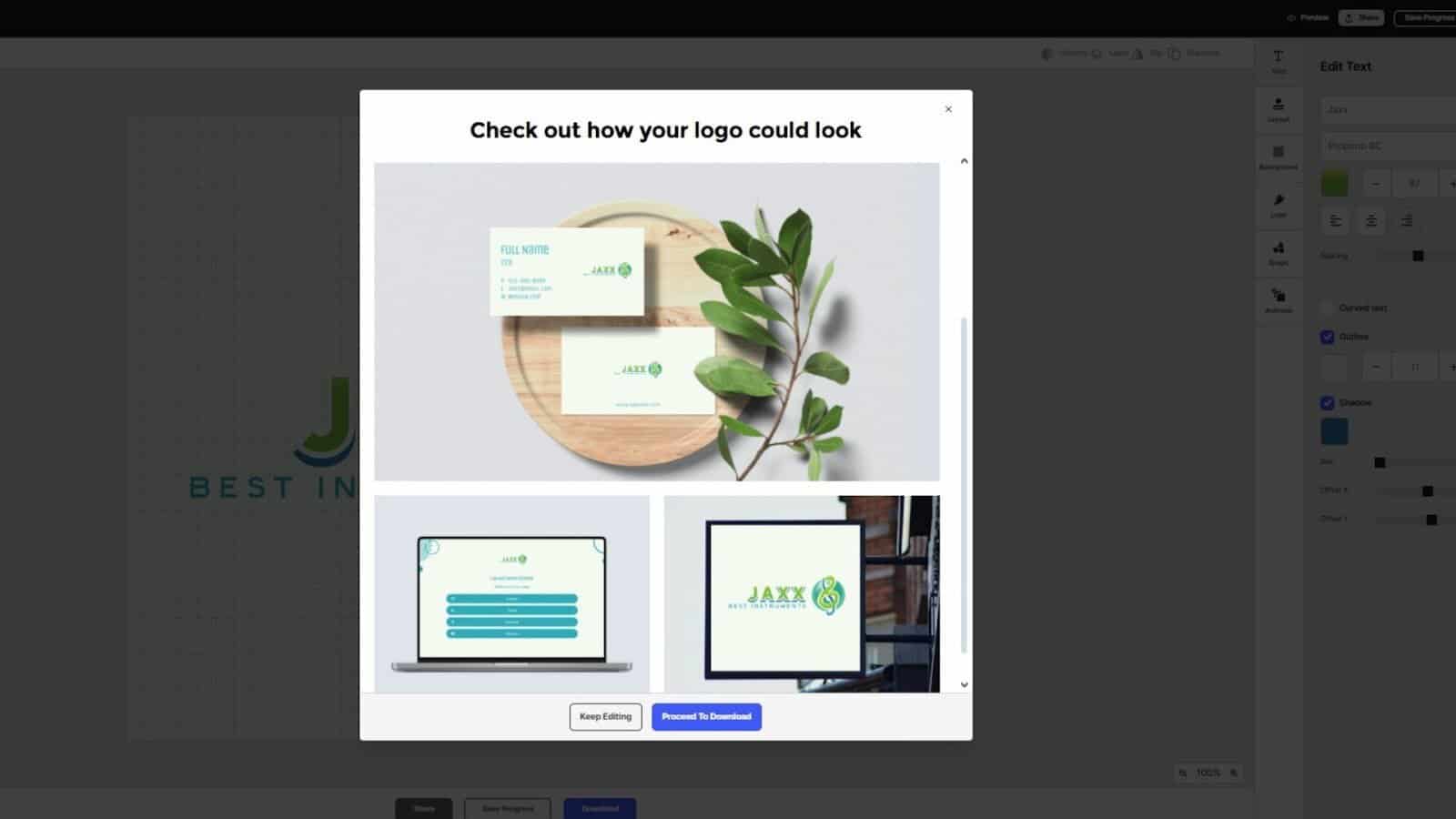
Design.com automatically shows your logo on:
- Business cards
- Posters
- Flyers
- Social media posts
- Websites
- Letterheads
- Apparel and merchandise mockups
These previews use your exact colors and fonts, thanks to Design.com’s automatic brand consistency system.
It’s one of the easiest ways to see how your brand will look in the real world.
7. Download Your Logo Files
Once you’re satisfied, you can download your files in multiple formats depending on your plan.
Available file formats include:
- Vector files: SVG, EPS, PDF
- Raster files: PNG, JPG
- Animated files: GIF, MP4
- Transparent backgrounds
- Icon-only exports
All logos are commercially safe, original, and quality-checked.
8. (Optional) Build Your Website for Free
Every plan, even free logo use, includes:
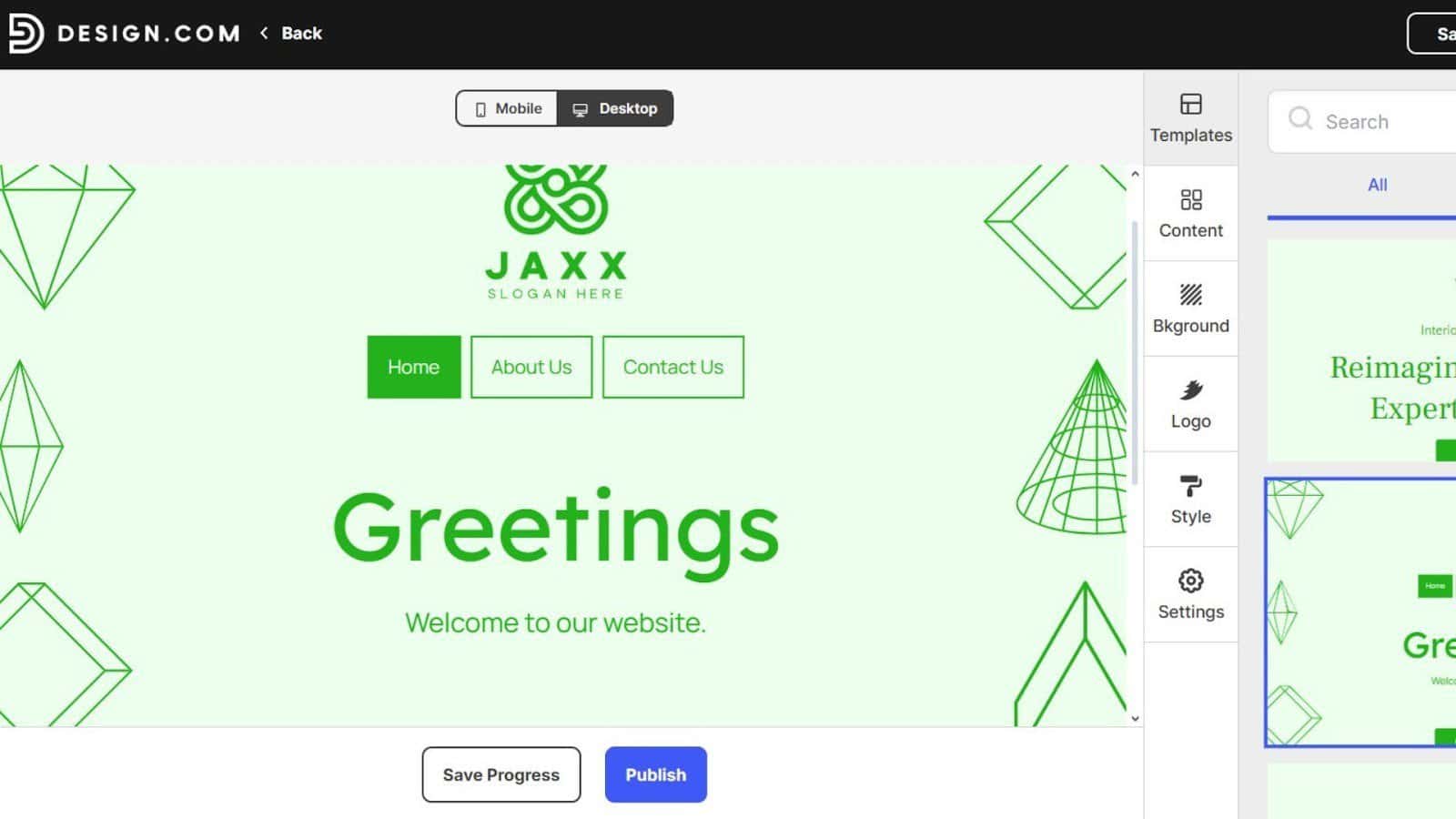
- Free website builder
- Free link-in-bio page
- Free digital business card
These freemium versions have minor limitations and include Design.com branding in the footer, but they’re perfect for launching your brand quickly.
Final Thoughts
Design.com’s AI Logo Generator makes it incredibly easy to create a unique, professional logo in minutes, even if you’ve never designed anything before. Its combination of the largest logo library, exclusive fonts, powerful AI tools, and complete branding suite makes it one of the best all-in-one solutions available today.
Whether you’re launching a new business, refreshing your brand, or creating your first visual identity, Design.com gives you everything you need in one place.


Read our disclosure page to find out how can you help Windows Report sustain the editorial team. Read more



Improve this guide



User forum
0 messages