
Bluetooth Disappeared in Windows 11? Here's How to Fix It
You can restore Bluetooth on Windows 11 by reinstalling its drivers


 4 min. read
  Updated on

Is Bluetooth disappeared in Windows 11 leaving you unable to connect headphones, mice, or other wireless devices? This issue is common after updates, driver problems, or power settings conflicts.
In this guide, you’ll learn how to fix missing Bluetooth functionality step by step, whether the Bluetooth driver is missing from Device Manager or Windows 11 Bluetooth icon keeps disappearing from system tray.
Fix Bluetooth Function Disappeared in Windows 11
Table of contents
1. Check if Bluetooth Is Actually Missing
- Go to Settings > Bluetooth & devices
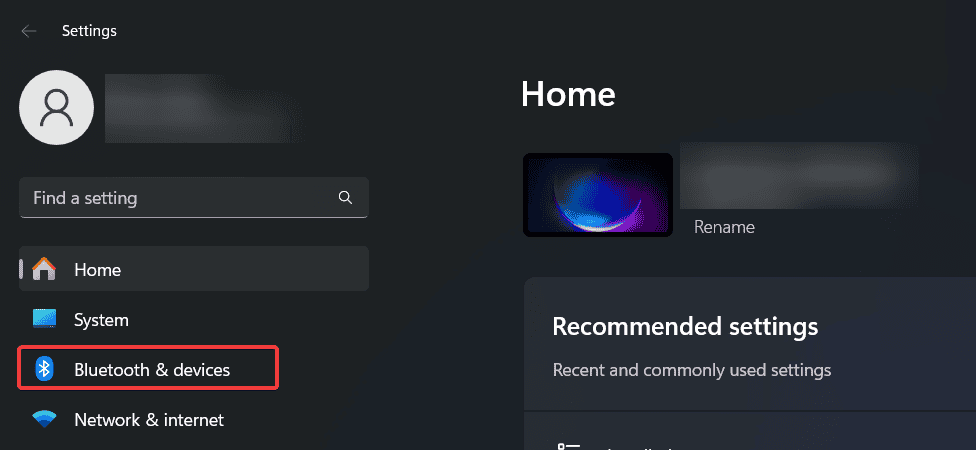
- If the Bluetooth toggle is missing, the feature may be disabled or the driver is corrupted
To make sure Bluetooth is not turned off, follow this guide on how to enable Bluetooth on Windows 11.
2. Run the Bluetooth Troubleshooter
- Navigate to Settings > System > Troubleshoot > Other troubleshooters

- Run the Bluetooth troubleshooter
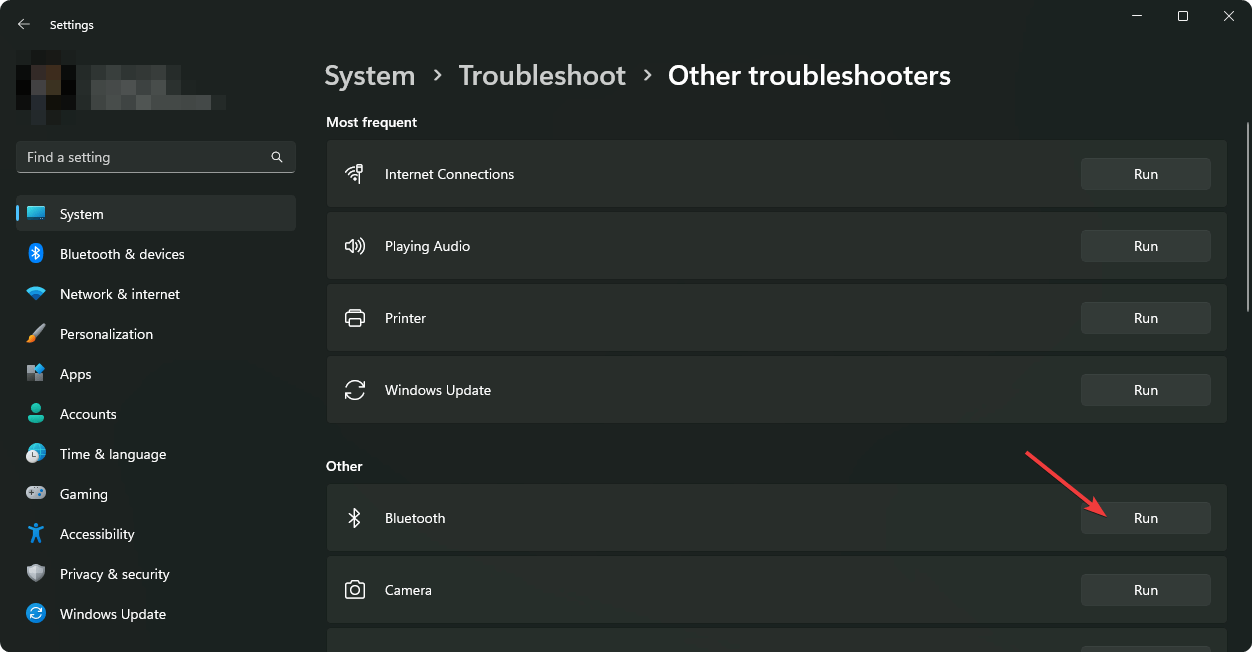
- Reboot if prompted
This helps when Bluetooth suddenly disappeared from Windows 11 due to minor system issues.
3. Show Hidden Devices in Device Manager
- Open Device Manager
- Click View > Show hidden devices

- Check for a hidden or disabled Bluetooth adapter
If your system lists Bluetooth under Unknown devices, you may need to manually install missing drivers in Windows 11.
4. Restart Bluetooth Support Services
- Open Run, type services.msc, and hit Enter

- Restart Bluetooth Support Service

- Set it to Automatic in the service properties
If you’re still facing issues, check whether your specific Realtek Bluetooth 5.0 driver needs an update or reinstall by visiting this Realtek Bluetooth driver guide.
5. Reinstall Bluetooth Drivers
- In Device Manager, right-click the Bluetooth device and uninstall it
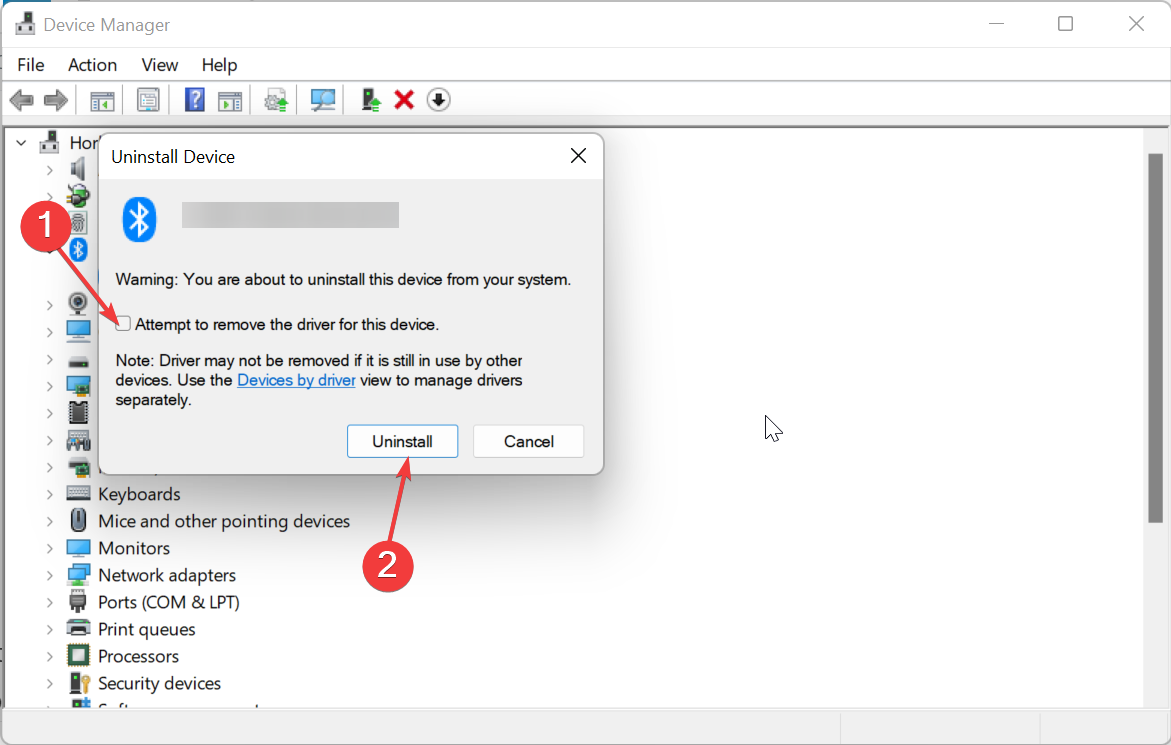
- Reboot your system to auto-reinstall the driver
For a clean reinstall, follow this dedicated guide on downloading and installing Bluetooth drivers for Windows 11.
6. Scan for Hardware Changes
If Bluetooth driver is missing from Device Manager, force Windows to detect it:
- In Device Manager, right-click your PC name and select Scan for hardware changes
You can also check for advanced codec support like LDAC Bluetooth in Windows 11 to ensure better audio connectivity, if applicable.
7. Check BIOS/UEFI for Bluetooth Toggle
- Enter BIOS/UEFI settings during boot (usually F2, Del, or Esc)
- Look for a Wireless or Bluetooth toggle and ensure it’s enabled
This is helpful when Bluetooth capability disappeared in Windows 11 due to system firmware resets.
8. Perform a System Reset as a Last Resort
If nothing else works, resetting your system might restore all default Bluetooth settings.
- Go to Settings > System > Recovery > Reset this PC
- Choose “Keep my files” to avoid data loss
For detailed instructions, check this walkthrough on how to restore Windows 11 to factory settings.
Why Did My Bluetooth Disappear in Windows 11?
Common causes include:
- Driver corruption after updates
- Hidden or disabled adapters
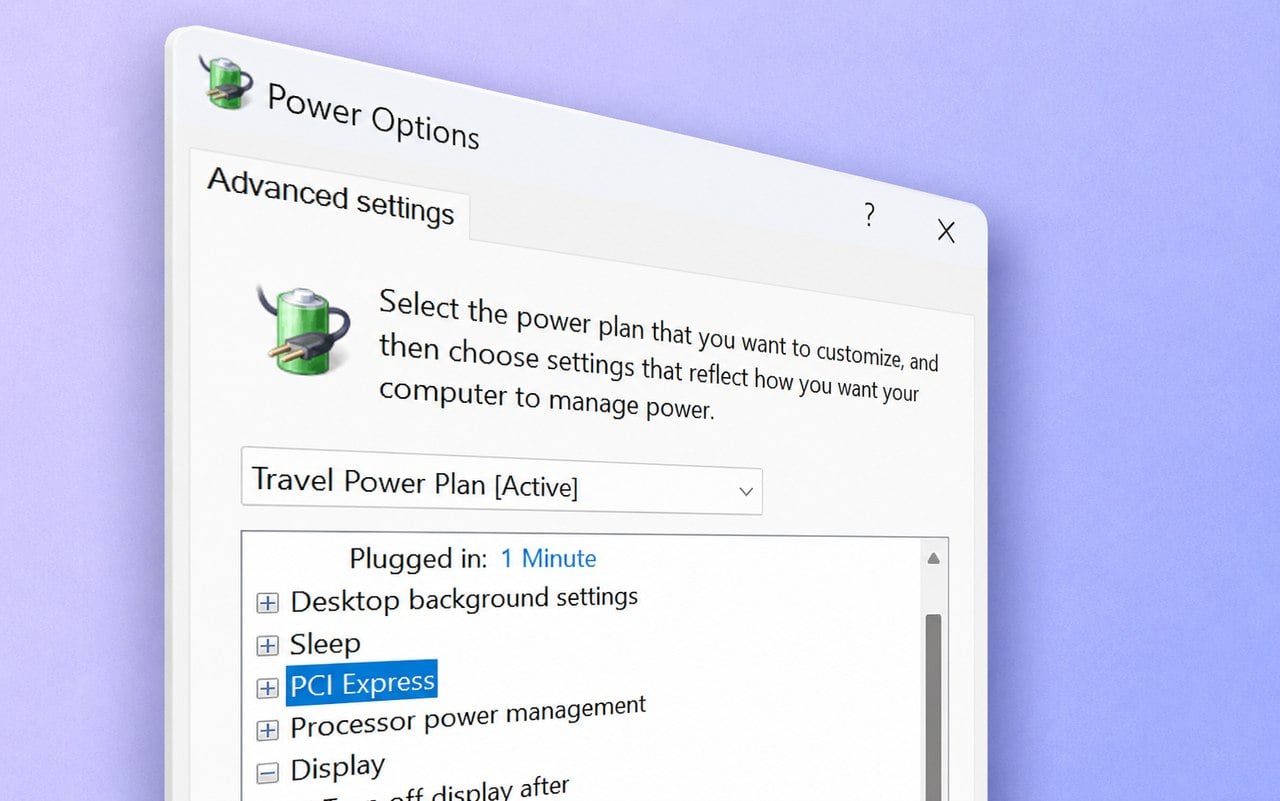
- Power saving settings
- BIOS reset or firmware update
- Manual removal of paired devices (see how to remove a Bluetooth device in Windows)
If you’re also using Windows 10 or a dual-boot setup, these Bluetooth not working issues in Windows 10 might provide additional context.
Conclusion
If Bluetooth disappeared in Windows 11, don’t panic, it’s usually a driver or system setting issue, not hardware failure. Start by checking visibility in Device Manager, running the Bluetooth troubleshooter, and reinstalling or updating your drivers. In most cases, following these steps will restore full Bluetooth functionality in just a few minutes. For rare cases, BIOS settings or a full system reset may be necessary.
By taking a methodical approach, you can resolve missing Bluetooth problems and reconnect your devices without hassle.
FAQs
Updates sometimes uninstall incompatible drivers. You may need to reinstall the original driver from your OEM or use Windows Update.
Yes. If all software fixes fail and no adapter is detected, the internal module may be damaged.

Read our disclosure page to find out how can you help Windows Report sustain the editorial team. Read more



Improve this guide


User forum
3 messages