
AppData Folder Too Big? 4 Fixes for Windows


 3 min. read
  Published on

If your AppData folder is too big, it can eat up valuable storage space on Windows 10 and Windows 11. This folder stores application data, caches, and temporary files, and it often grows uncontrollably over time. Luckily, you can clean it up and keep your PC running smoothly.
How do I fix AppData folder that is too big in Windows?
Table of contents
1. Clear temporary files in AppData
- Press Win + R, type %localappdata%, and hit Enter.
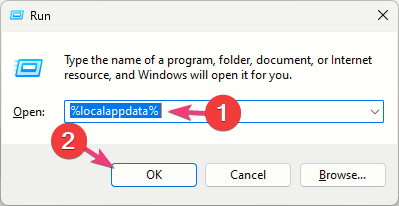
- Open the Temp folder.
- Select all files inside and delete them.
- Empty the Recycle Bin to reclaim space.
This removes leftover files that applications no longer need.
2. Use Windows Storage and Disk Cleanup
- Go to Settings > System > Storage.
- Click Temporary files.

- Select unnecessary items like cache and thumbnails.
- Click Remove files.
For detailed instructions and safe cleanup methods, see this guide on how to clean the AppData folder in Windows 11.
3. Stop DismHost.exe from filling AppData
- Press Win + R, type taskschd.msc, and press Enter.
- Go to Task Scheduler Library > Microsoft > Windows > DiskCleanup.
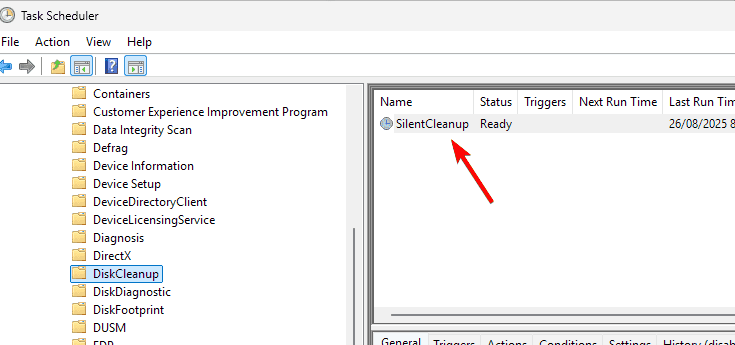
- Right-click SilentCleanup and choose Disable.
Sometimes, the AppData folder gets huge due to DismHost.exe, which creates many temporary files when SilentCleanup runs automatically. Disabling this prevents repeated auto-clean tasks from bloating AppData. To better understand the data apps store here, check what is the AppData folder in Windows.
4. Reinstall or reset problematic apps
- Press Win + I to open Settings.
- Go to Apps > Installed apps (or Apps & features).
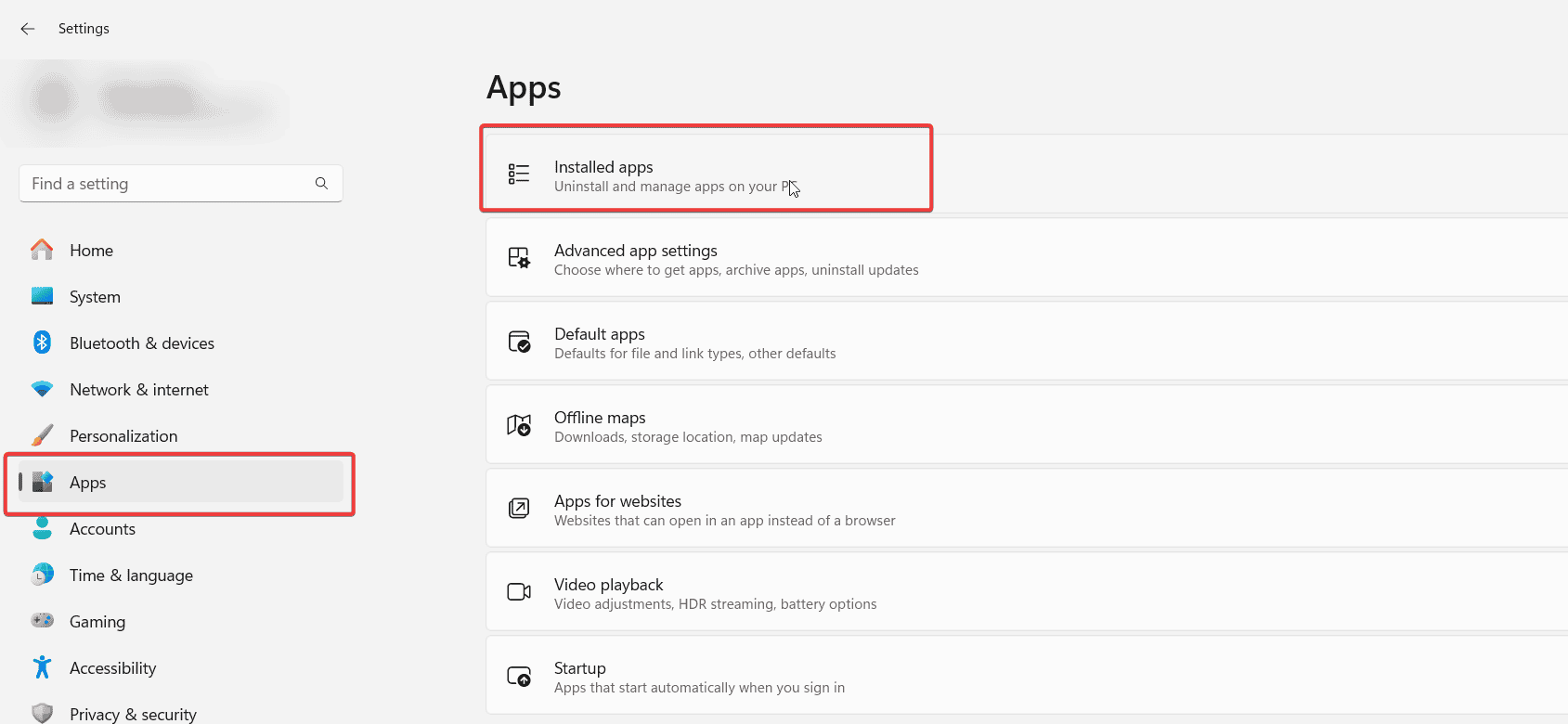
- Find the app using too much space.
- Select it and click Advanced options.
- Choose Reset or uninstall and reinstall the app.
If you suspect specific apps like browsers, email clients, or launchers are behind the issue, resetting them can clear caches. In rare cases, folders like LocalLow may even disappear. If that happens, follow this guide on AppData LocalLow missing in Windows for fixes.
FAQs
You should not delete the entire AppData folder, as it contains important app settings. Instead, clear only the Temp folder or use Windows cleanup tools.
Regularly clear temporary files, manage app caches, and disable unnecessary scheduled tasks like SilentCleanup.
It depends on how many programs you use. Usually, it ranges from a few GBs to 20GB+. If it’s much larger, cleanup is recommended.

Read our disclosure page to find out how can you help Windows Report sustain the editorial team. Read more



Improve this guide



User forum
0 messages