
Fix You Can't Sign In With This Account Error In Windows 11


 4 min. read
  Published on

You can’t sign in with this account appears when Windows blocks your profile due to corruption or sync issues. Damaged user data and incorrect Microsoft account settings often trigger this message. You can fix the problem by repairing your profile, refreshing account sync, or creating a new user.
Table of contents
How Can I Fix You Can’t Sign In With This Account?
1. Restart Your PC And Try Again
A quick restart clears temporary profile errors.
- Click Start.
- Select Power.
- Click Restart.
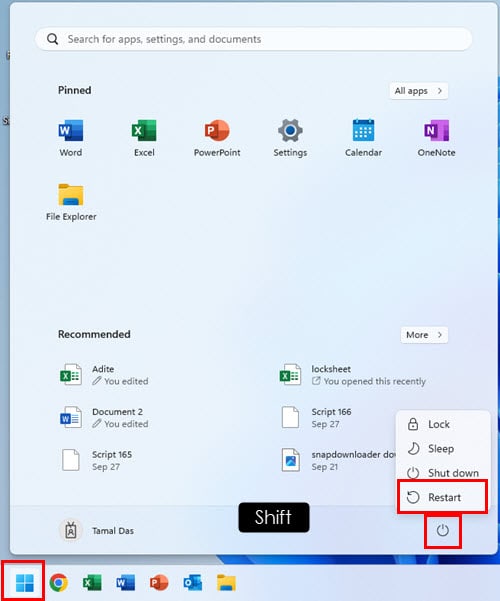
- Sign in again.
If the error involves Microsoft account sync problems, you can review an extended walkthrough that explains common causes and solutions in our problems signing in with a Microsoft account guide.
2. Disconnect And Reconnect Your Microsoft Account
Refreshing the sync between Windows and your Microsoft account often resolves this error.
- Open Settings.
- Click Accounts.
- Select Your info.
- Choose Sign in with a local account instead.

- Restart your PC.
- Return to Your info.
- Select Sign in with a Microsoft account.
- Enter your credentials.
For broader sign in errors that affect both local and Microsoft accounts, you can explore a comprehensive troubleshooting resource in our why Windows sometimes refuses account sign in article.
3. Run SFC And DISM To Repair Profile Files
These tools repair damaged Windows components that may block account access.
- Press Win + X.
- Select Windows Terminal (Admin).
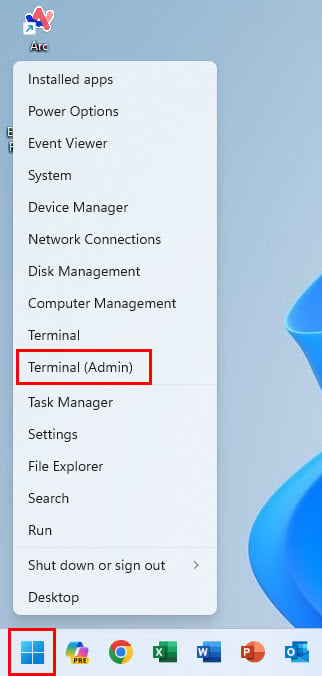
- Type sfc /scannow and press Enter.
- Wait for the scan to complete.
- Run DISM /Online /Cleanup Image /RestoreHealth.
- Restart your PC.
4. Create A New User Account
A fresh profile often solves deeper corruption issues.
- Open Settings.
- Click Accounts.
- Select Family and other users.
- Click Add account.

- Choose I do not have this person’s sign in information.
- Click Add a user without a Microsoft account.
- Create login details.
- Sign in with the new account.
If Windows reports that the profile cannot be used at all, you can follow the instructions for restoring access from our how to fix a user account that is currently disabled article.
5. Remove Recent Windows Updates
Faulty updates sometimes interfere with the profile service.
- Open Settings.
- Click Windows Update.
- Select Update history.
- Click Uninstall updates.
- Remove the most recent update.
- Restart your PC.
6. Reset Windows While Keeping Your Files
This restores Windows system files without deleting personal data.
- Open Settings.
- Click System.
- Select Recovery.
- Click Reset this PC.
- Choose Keep my files.
- Follow the instructions.
What Causes You Can’t Sign In With This Account
Corrupted profile files, cloud sync errors, damaged updates, or permission problems often lead to this message.
FAQ
Yes. Restarting the PC, reconnecting your Microsoft account, or running SFC and DISM often resolves the issue.
Your personal files usually remain intact. The error affects login data, not documents.
The message appears when the user profile becomes corrupted or when Microsoft account sync breaks.
Only if the corruption is severe. Resetting Windows acts as the final option after other fixes fail.
The error usually results from corrupted profile data or broken account sync. Restarting your PC, reconnecting your Microsoft account, repairing Windows system files, or creating a new user profile resolves the issue in most cases. Resetting Windows provides a final solution when profile corruption runs deeper.

Read our disclosure page to find out how can you help Windows Report sustain the editorial team. Read more



Improve this guide


User forum
0 messages