
Microsoft Store Stuck on Working? Here Is How to Fix It Quickly


 3 min. read
  Published on

When the Microsoft Store gets stuck on the Working… screen, the issue usually involves corrupted cache files, system update problems, or slow connectivity. This guide gives you the fastest ways to fix it so you can install apps again without delays.
Table of contents
How Can I Fix Updating Microsoft Store Stuck on Working?
1. Restart the Microsoft Store
Restarting forces the app to reload and clear temporary issues.
- Press Windows key.
- Type Microsoft Store and open it.

- Close it completely.
- Open it again and retry the update.
After the steps, check this guide on the Microsoft Store not working on Windows for more fixes.
2. Reset the Microsoft Store cache
A corrupted cache often causes the endless Working… loading loop.
- Press Windows key + R.
- Type wsreset.exe.

- Press Enter.
- Wait for the Store to reopen automatically.
- Try updating apps again.
After the steps, you can read more in the guide on resetting the Microsoft Store.
3. Check your internet connection
Slow or unstable connections prevent app updates from starting.
- Open Settings > Network and internet.
- Check your network status.
- Restart your router if needed.
- Switch to another network if possible.
4. Run the Windows Store Apps troubleshooter
The troubleshooter fixes configuration and component issues automatically.
- Open Settings.
- Go to System > Troubleshoot > Other troubleshooters.
- Select Run next to Windows Store Apps.
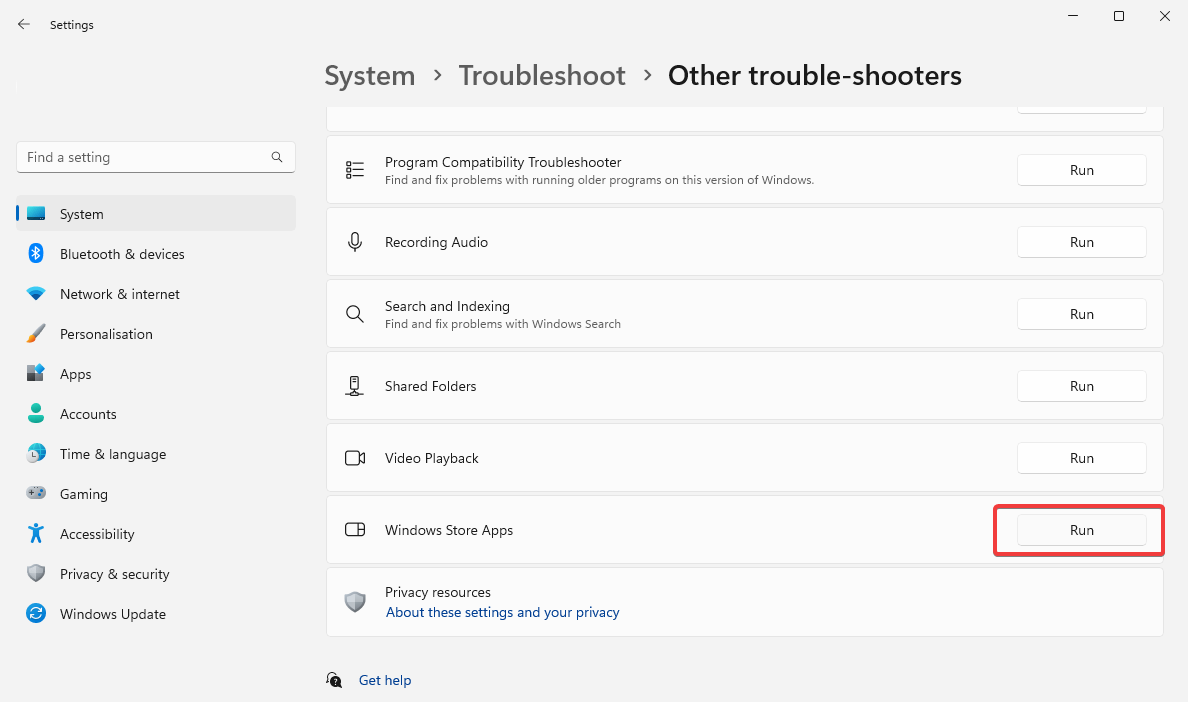
- Apply the suggested fixes.
After the steps, you can check this guide on the Windows app store not updating for additional troubleshooting paths.
5. Install pending Windows updates
Outdated or incomplete system updates slow down or freeze Store downloads.
- Open Settings > Windows Update.
- Click Check for updates.
- Install everything available.
- Restart your PC.
6. Reinstall the Microsoft Store
Reinstalling replaces damaged files and resets Store functionality.
- Open Start and type PowerShell.
- Right-click Windows PowerShell and select Run as administrator.

- Paste this command:
Get-AppxPackage -allusers Microsoft.WindowsStore | Foreach {Add-AppxPackage -DisableDevelopmentMode -Register "$($_.InstallLocation)\AppxManifest.xml"} - Press Enter.
- Restart your PC.
Why Microsoft Store updates get stuck
The update process stops because of corrupted cache files, unstable internet, wrong date or time settings, or outdated Windows components. Fixing these issues usually restores normal Store functionality.
FAQs
Reset the cache, run the troubleshooter, restart the app, and install any pending Windows updates.
No. Resetting only clears cached data and temporary files.
Your network, cache, or system components may not respond correctly until you refresh or repair them.
The Microsoft Store often gets stuck on Working because its cache becomes corrupted or Windows components fall out of sync. Restarting the Store, clearing the cache, and installing updates usually restore normal performance. If the issue persists, the troubleshooter and Store reinstallation offer reliable repair options.

Read our disclosure page to find out how can you help Windows Report sustain the editorial team. Read more



Improve this guide


User forum
0 messages