
Marvel Rivals Not Showing on OBS: Quick Fixes


 3 min. read
  Published on

If Marvel Rivals is not showing on OBS, you may have trouble capturing your gameplay or streaming properly. This guide will help you fix the issue so you can get back to recording and sharing your matches smoothly.
Table of contents
What can I do if Marvel Rivals is not showing on OBS?
1. Run OBS as administrator
OBS sometimes needs extra permissions to detect games.
- Close OBS if it is already open.
- Right click on the OBS shortcut.
- Select Run as administrator from the menu.

- Confirm the prompt to launch OBS with admin rights.
- Test if Marvel Rivals is now captured.
2. Use Game Capture mode
Switching to Game Capture usually gives the most reliable results.
- Open OBS and select your scene.
- Click the + icon to add a new source.
- Choose Game Capture from the options.
- Select Capture specific window.
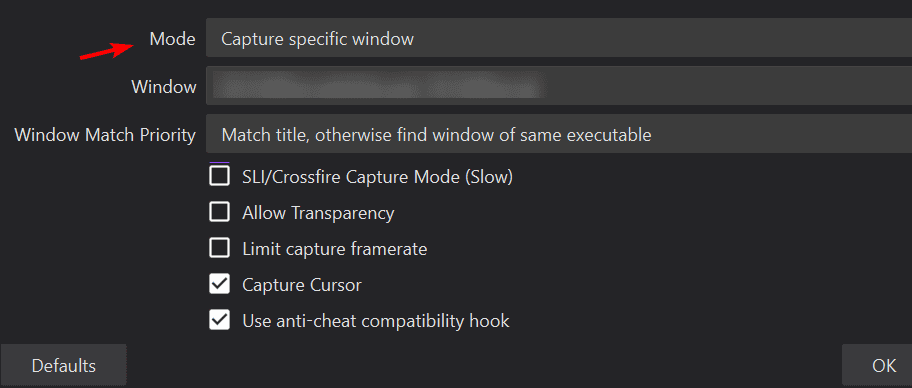
- Pick Marvel Rivals as the window to capture.
If the game refuses to start, OBS will not recognize it either. First address issues where Marvel Rivals is not launching by following this guide: Marvel Rivals not launching.
3. Disable fullscreen optimizations
Fullscreen optimizations can block OBS from hooking into the game.
- Navigate to the Marvel Rivals installation folder.
- Right click the main executable file.
- Select Properties and go to the Compatibility tab.
- Check Disable fullscreen optimizations.

- Apply the changes and restart the game.
4. Update graphics drivers and OBS
Updating your drivers and OBS ensures compatibility with new games.
- Open your GPU control panel or visit the manufacturer website.
- Download the latest graphics drivers.
- Install the update and restart your PC.
- Launch OBS and check for updates.
- Install the newest OBS version if available.
If the game build is outdated, OBS may still fail to hook. Resolve update problems using this guide: Marvel Rivals not updating.
5. Check if the game is stable
OBS cannot record a game that is unstable or failing to connect.
- Launch Marvel Rivals normally.
- If it fails, check for known issues or recent changes.
- Restart your PC and relaunch the game.
- Verify that the installation is not corrupted.
- Test capture in OBS once the game runs properly.
Connection errors can also prevent capture. If you see sign in or matchmaking problems, review this fix: Marvel Rivals failed to connect to Steam.
FAQs
OBS may fail to detect the game if it lacks admin rights, is set to the wrong capture mode, or fullscreen optimizations are enabled.
Yes, but Game Capture is recommended because it performs better and has fewer detection problems.
Running the game in borderless windowed mode can sometimes help OBS detect it.
Check GPU assignments in OBS settings. Make sure OBS is running on the same GPU as the game.
It can be. If the game fails to update or launch properly, OBS cannot capture it until it runs correctly.
Conclusion
If Marvel Rivals is not showing on OBS, these five fixes should help. Once OBS is set up correctly and the game is running without issues, you should be able to record and stream smoothly again.

Read our disclosure page to find out how can you help Windows Report sustain the editorial team. Read more



Improve this guide


User forum
0 messages